Project
A project in PQFORCE consists of one or more time-limited activities, where resource expenditures can be planned and tracked. Projects facilitate the structured planning, execution, and management of tasks related to a specific initiative, objective, or major deliverable.
Each project includes a description, which outlines the project goal and solution approach, and a schedule, which incorporates planning data, resource allocation, and effort tracking. Progress monitoring is supported through effort and completion values, ensuring transparency and control throughout the project Lifecycle.
PQFORCE offers multiple visualisation tools, including Gantt charts, Kanban boards, and other views, to provide flexible and comprehensive project tracking.
A project goes through different stages, which are mapped with the project Lifecycle.
In editions higher than PQFORCE Smart, status reports can be created for each project, which record the progress of the project at periodic intervals.
Navigator
This section is available only for editions higher than PQFORCE Smart
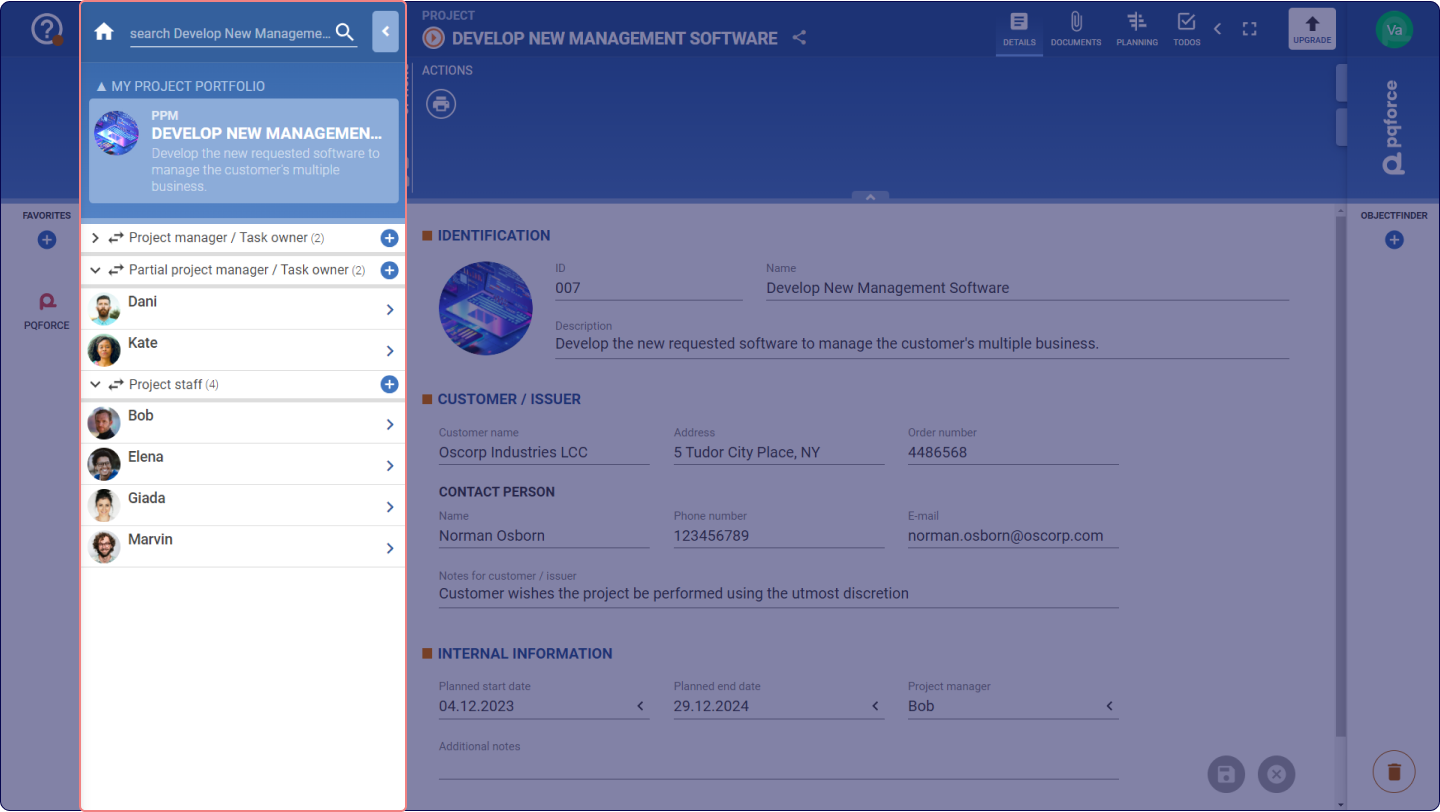
If the active object is a project, the following elements are displayed in the Navigator:
- Project management: Displays the individuals designated as project manager or task owner for the active project. Additional project managers or task owners can be added by clicking on the Plus icon
![]() . A resource designated as a project manager is granted local permissions in addition to their global ones for the project they are assigned to, enabling them to view, edit, and plan the assigned project. This includes allocating resources to tasks and modifying the project status as needed.
- Project Team: Displays the individuals assigned as project team responsible for the active project. A resource designated as a part of the project team is granted local permissions in addition to their global ones for the project they are assigned to, enabling them to view the assigned project and access all associated details. Additional team members can be added by clicking on the Plus icon
![]() .
- Project reports: Lists all project reports belonging to the active project. The reports are sorted by date, with the report with the latest deadline at the top. By clicking on the Plus icon
![]() , another project report can be created, which covers all missed report periods. If no project report exists yet, a new project report will be created for the last repeat period.
- Partial Project Manager / Task Owner: Displays individuals assigned as task owners or other roles for the active project.
 . A resource designated as a project manager is granted local permissions in addition to their global ones for the project they are assigned to, enabling them to view, edit, and plan the assigned project. This includes allocating resources to tasks and modifying the project status as needed.