Portfolio Tree
This section is available only for editions higher than PQFORCE Smart
Workspace
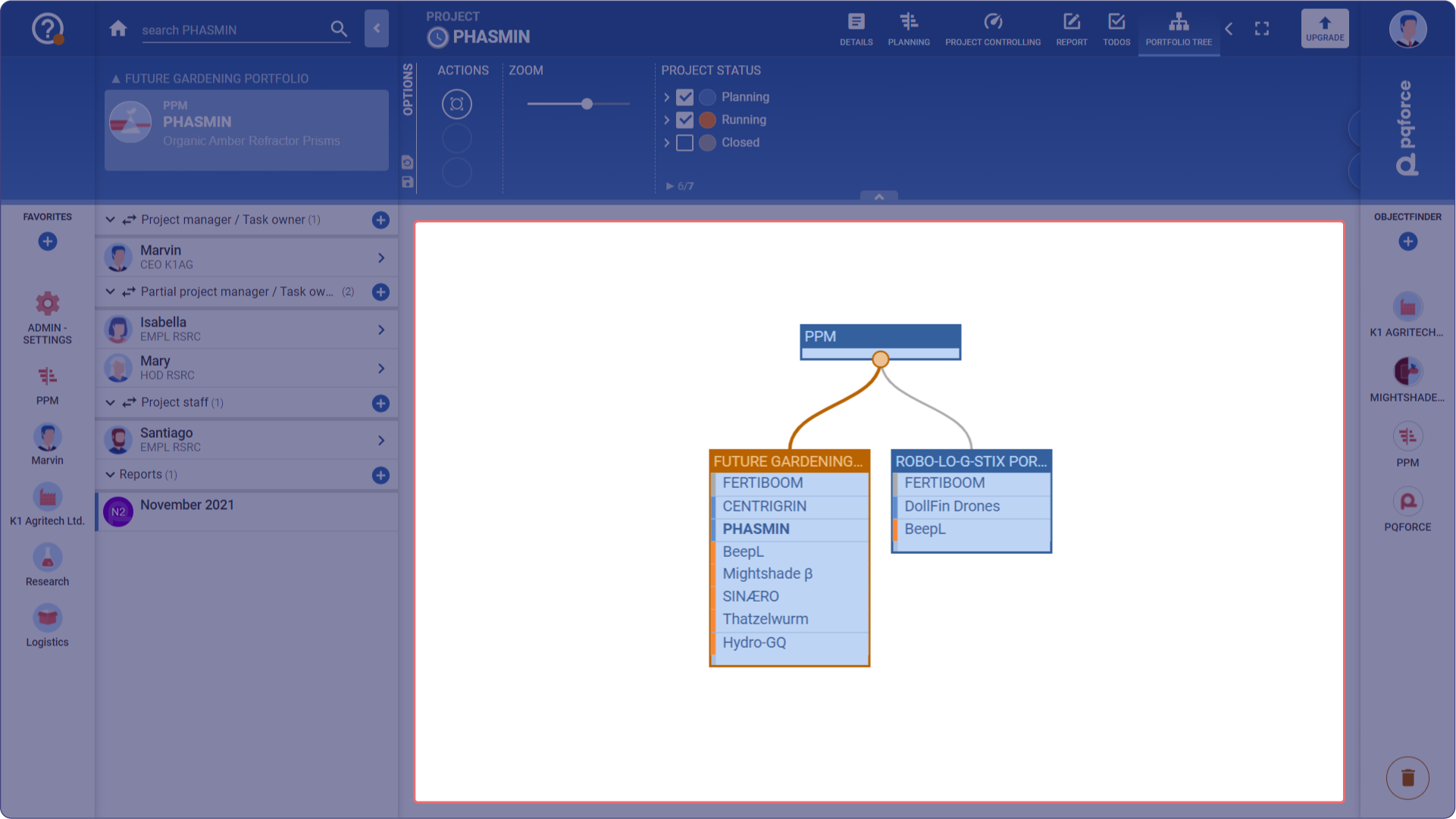
The portfolio tree is a representation of all projects and project portfolios in the system, organised in a hierarchical tree structure. The nodes of the tree consist of the project portfolios. Within the project portfolios are the projects, grouped by project status. The root of the tree is the PPM module. Attached below it at the top level of the project portfolios are the main project portfolios.
In this way, the project and portfolio landscape of a company can be mapped in detail.
Active project portfolio / Active project
The active object is highlighted in the portfolio tree.
- If the active object is a project portfolio, it is highlighted in the portfolio tree.
- If the active object is a project, its name is highlighted with bold font. If the project is in multiple project portfolios, it will be highlighted with bold font in each location.
For both project portfolios and projects, the paths from the root of the tree through the project portfolios to all locations of the active object are also highlighted in color.
Create main project portfolios
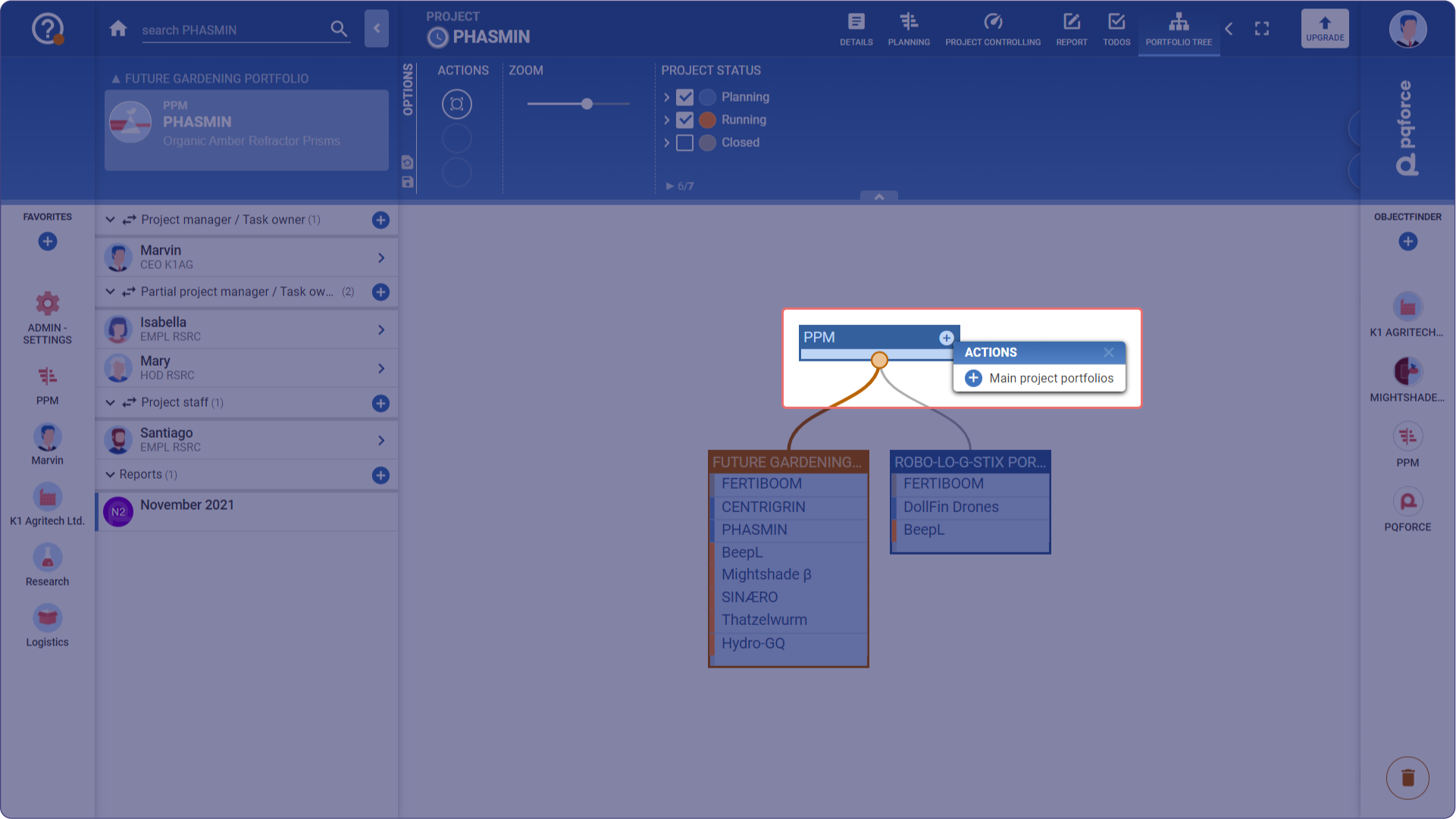
As in the Navigator, main project portfolios can be created on the root of the portfolio tree by moving the mouse pointer over the name bar at the "PPM" root and then clicking on the Plus symbol  that appears on the right.
Create projects
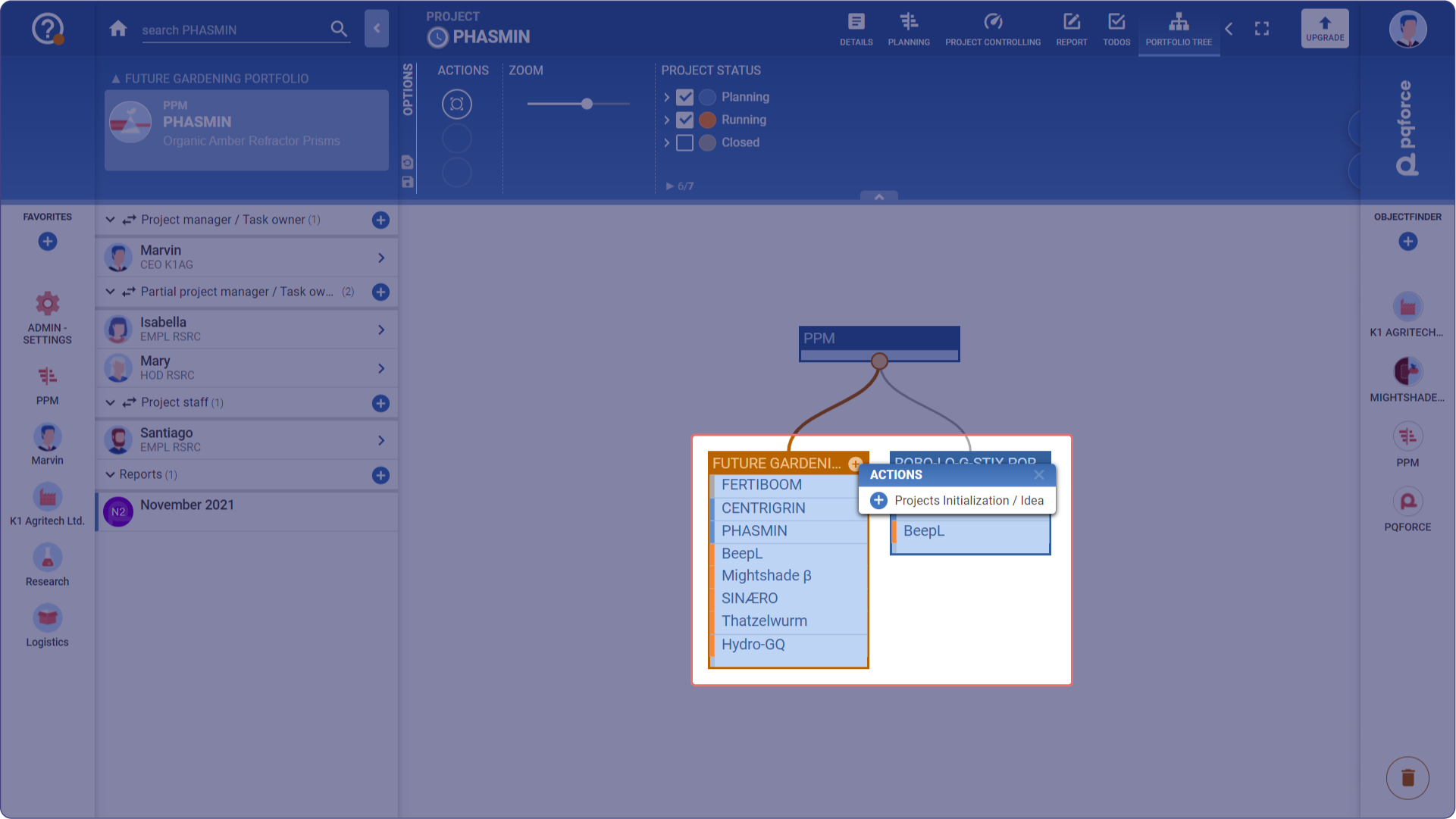
As in the Navigator, projects can be created in the initial state, for example, Initialization / Idea in a project portfolio by moving the mouse pointer over the name bar of the corresponding portfolio and then clicking on the Plus symbol that appears on the right.
Move or link projects
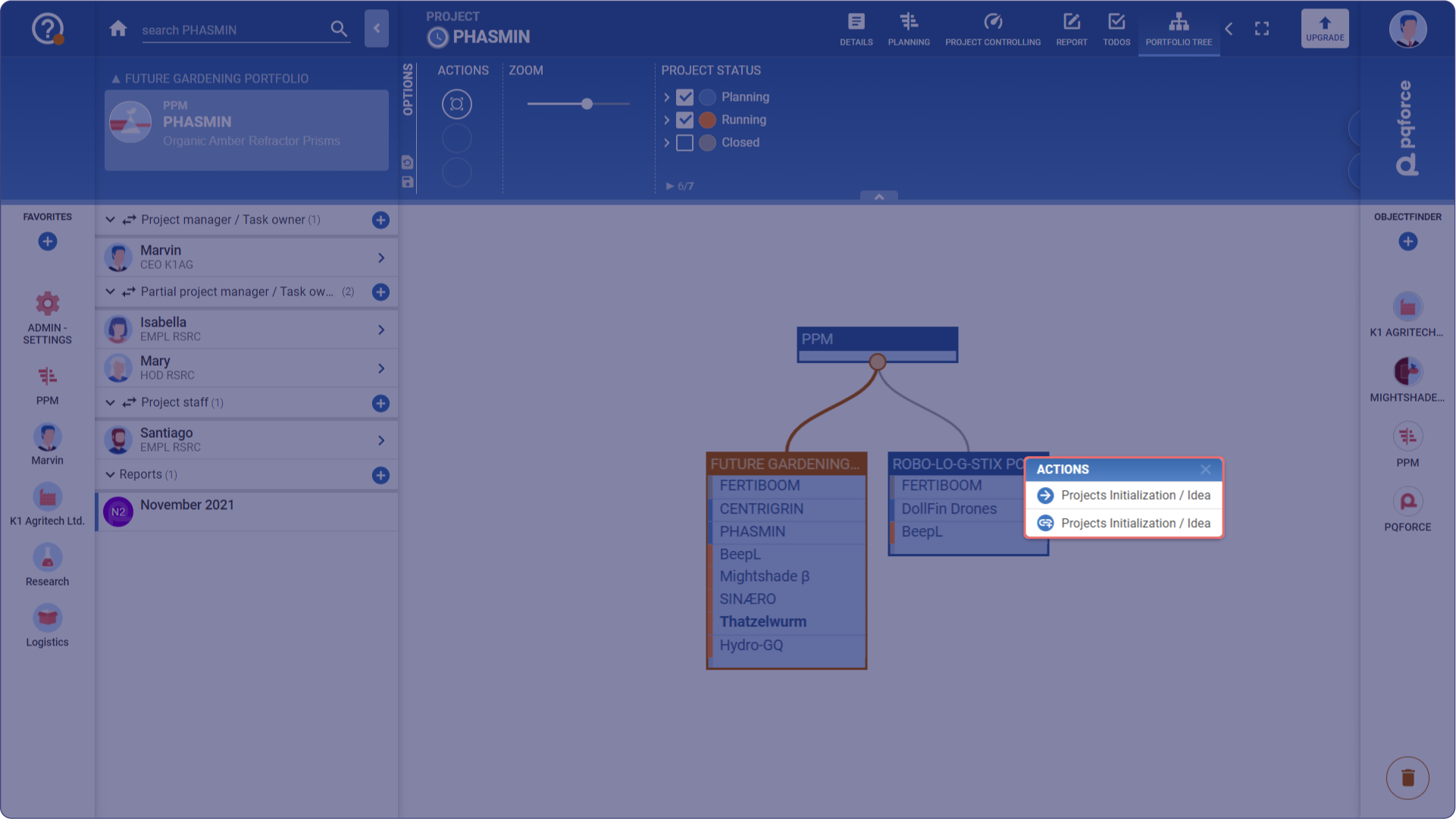
Projects can be moved or linked in the portfolio tree using Drag & Drop. To do this, the name of a project must be dragged into a target portfolio with the mouse button held down. In the context menu, you can determine whether the project is to be moved or linked. If the project is moved, it is then located in the target portfolio and no longer in the original portfolio. If the project is linked, then the project is subsequently in both the target portfolio and the source portfolio. This action can also be performed across different browser tabs.
Delete project portfolios and projects
Project portfolios and projects can be deleted from the portfolio tree by dragging and dropping the corresponding object to the Trash Bin at the bottom right.
When deleting a project, the choice between deleting the project or the link between the project and the project portfolio is offered. The latter option can only be used if the project is in multiple project portfolios.
Furthermore, it should be noted that project portfolios can only be deleted if they do not contain any projects.
Options Area
The following is a detailed description of the settings that can be made in the Options Area.

1 ACTIONS: Actions for the active view can be performed here.
Open/Close All: Opens all project portfolios in the workspace. Clicking this button again will close all project portfolios.
2 SIZE: These sliders scale the information displayed in the workspace.
- Zoom: This slider sets the zoom factor in the workspace. The same effect can be created by holding down the CTRL key and scrolling the mouse wheel while the mouse pointer is in the workspace.
- Width: This slider changes the width of the divisions in the workspace. The same effect can be created by pressing the mouse wheel with the CTRL+SHIFT keys pressed while the mouse pointer is in the workspace.
3 PROJECT STATUS: These check boxes can be used to determine which projects are displayed in the workspace, depending on their Lifecycle status.