User Menu
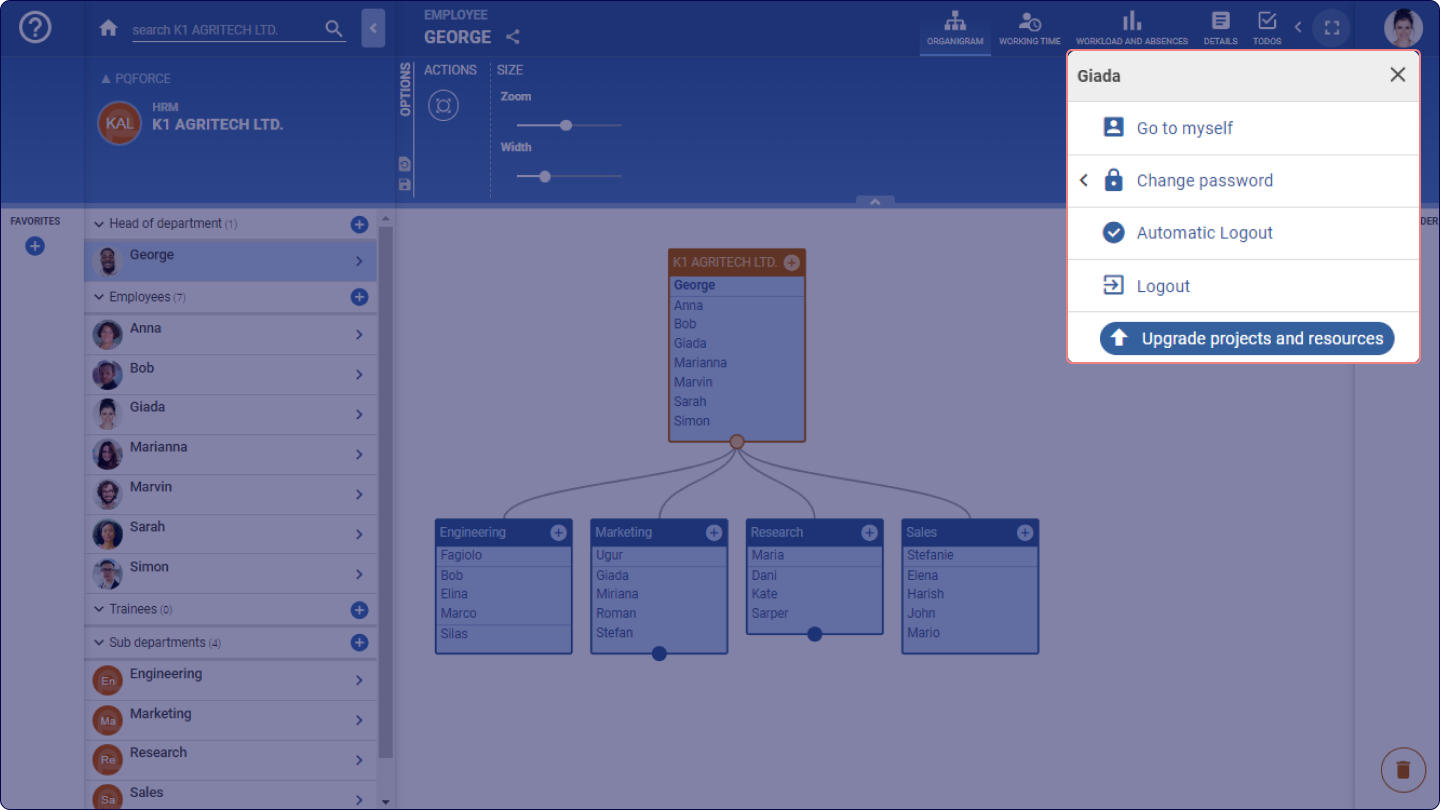
The User Menu contains actions tailored for the logged-in user.
When you click on the circle with the icon of the logged-in user, a dialogue box appears, which offers the following options:
![]()
Clock in/ Clock out
The functionalities and availability of this section may vary depending on your PQFORCE edition.
This option is not available for PQFORCE Smart edition.
My Profile
Opens the website Homepage Dashboard, where all available systems can be viewed and profile settings such as name, email, password, and two-factor authentication, can be edited using the menu in the top-right corner of the page.
Clock in/ Clock out
When the Clock In/Clock Out option is used, it creates a clocking entry in the employee's PERFORMANCE view under the PRESENCE section, recording the current time.
This option changes based on the employee's current status:
The current clock-in status is also indicated by an orange stopwatch icon on the bottom-right corner of User Menu when the employee is clocked in.
Go to myself
Navigates directly to the logged-in employee resource in the HRM module.
User settings
Language
This option allows changing the language of the current system. A browser reload is required after applying the changes to visualise them.
Logout
When this option is executed, the logged-in employee is immediately logged out, and the PQFORCE login screen reappears.
When the Clock In/Clock Out option is used, it creates a clocking entry in the employee's PERFORMANCE view under the PRESENCE section, recording the current time.
This option changes based on the employee's current status:
The current clock-in status is also indicated by a stopwatch icon ![]() in the User Menu when the employee is clocked in.
Go to myself
Running this option will navigate directly to the logged-in employee in the HRM module.
Change password
The functionalities and availability of this section may vary depending on your PQFORCE edition.
This option is not available for PQFORCE Smart edition.
The password can be changed after logging in via the following link.
When this option is executed, a dialogue box appears in which the password of the logged-in employee can be changed. For this purpose, the current password must be entered at the top and the new password must be entered twice below it.
Automatic Logout
The functionalities and availability of this section may vary depending on your PQFORCE edition.
This option is not available for PQFORCE Smart edition.
When this option is executed, automatic logout is enabled or disabled.
By default, this automatic logout is active and ensures that the user is automatically logged out after 15 minutes of inactivity.
Logout
When this option is executed, the logged-in employee is immediately logged out and the PQFORCE login screen reappears.
Upgrade Subscription
This option allows upgrading the subscription of the currently logged-in system. Note that only system owners have permission to perform an upgrade.
 in the User Menu when the employee is clocked in.