Lifecycle
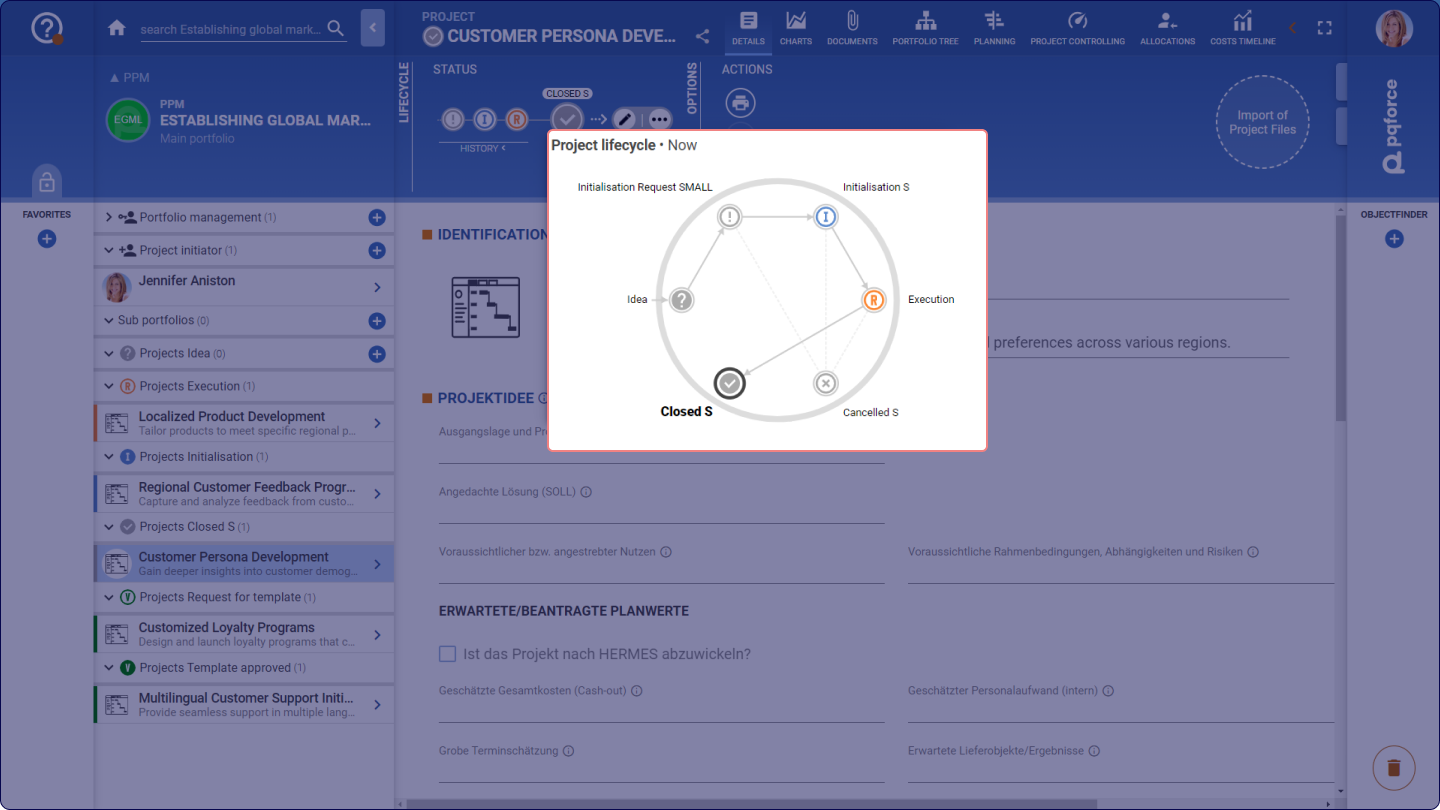
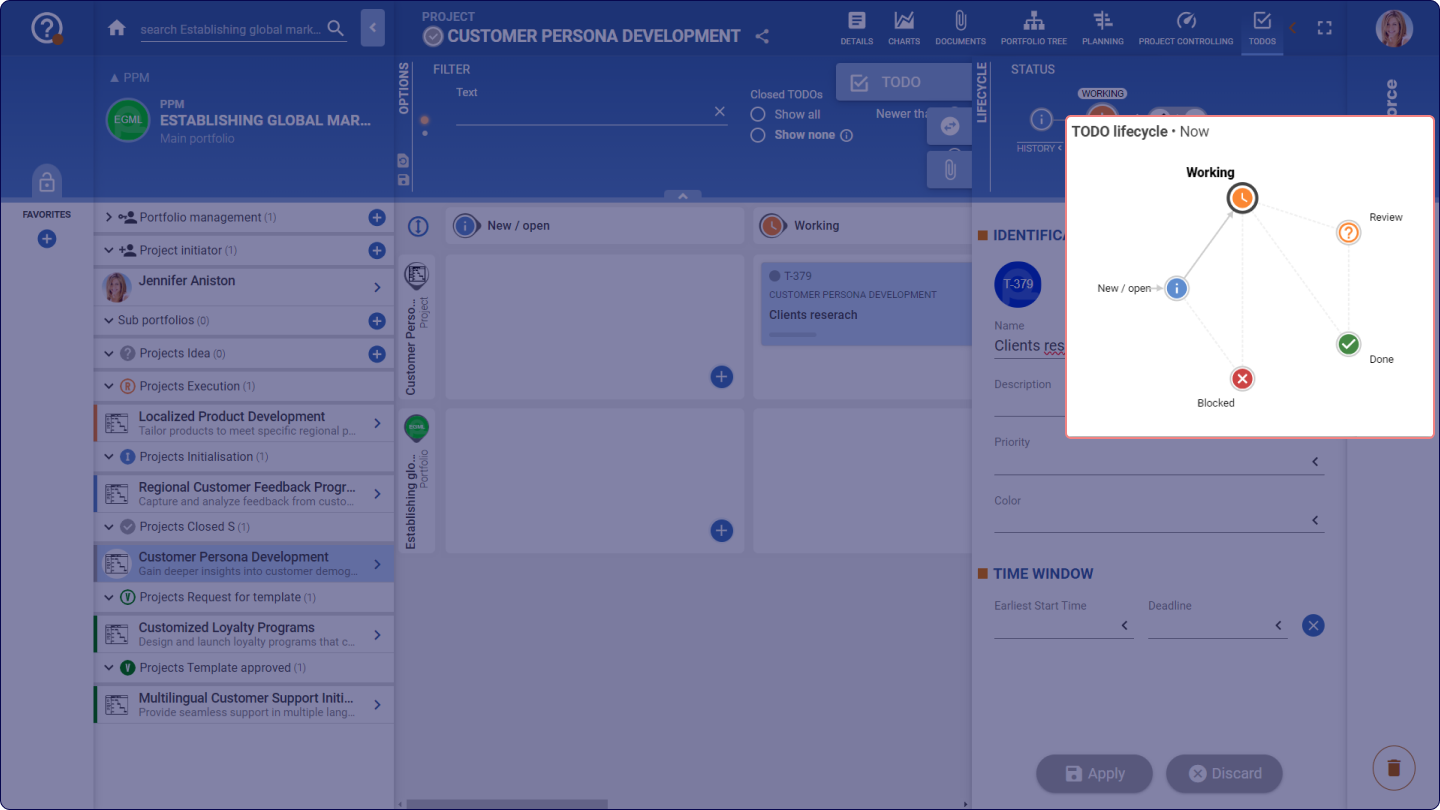
Various object types in PQFORCE have a Lifecycle. A Lifecycle consists of a series of statuses that characterise the state or progress of objects and transitions between these statuses. All statuses and status transitions are also tied to permissions. Depending on the current status, different elements of an object may be visible and/or editable to the user, and certain subsequent statuses may be accessible.
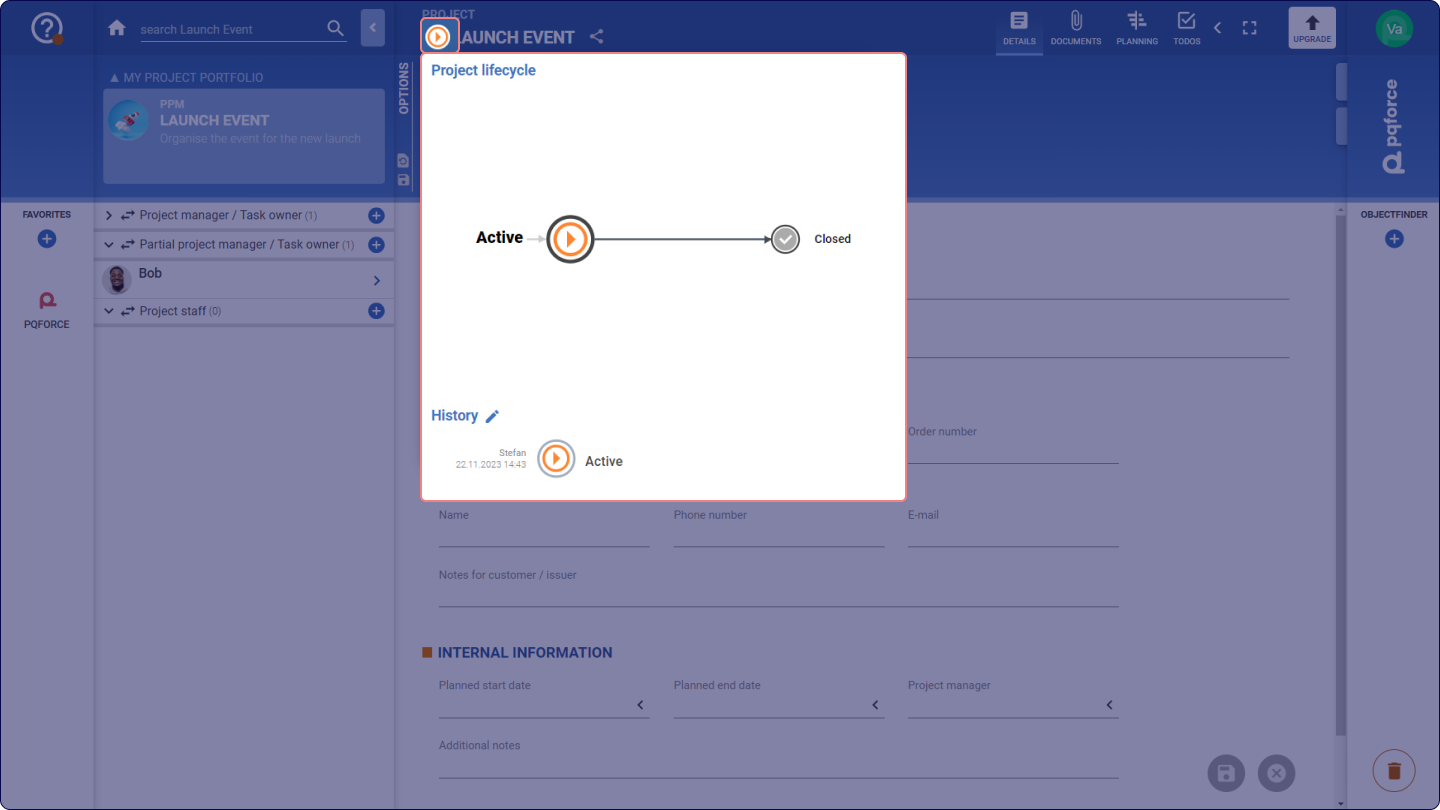
The Lifecycle of an object, or its current status, is displayed in the name bar directly to the left of the object name. Whenever an object is displayed in the side panel, the Lifecycle is also shown in the side panel Options Area.
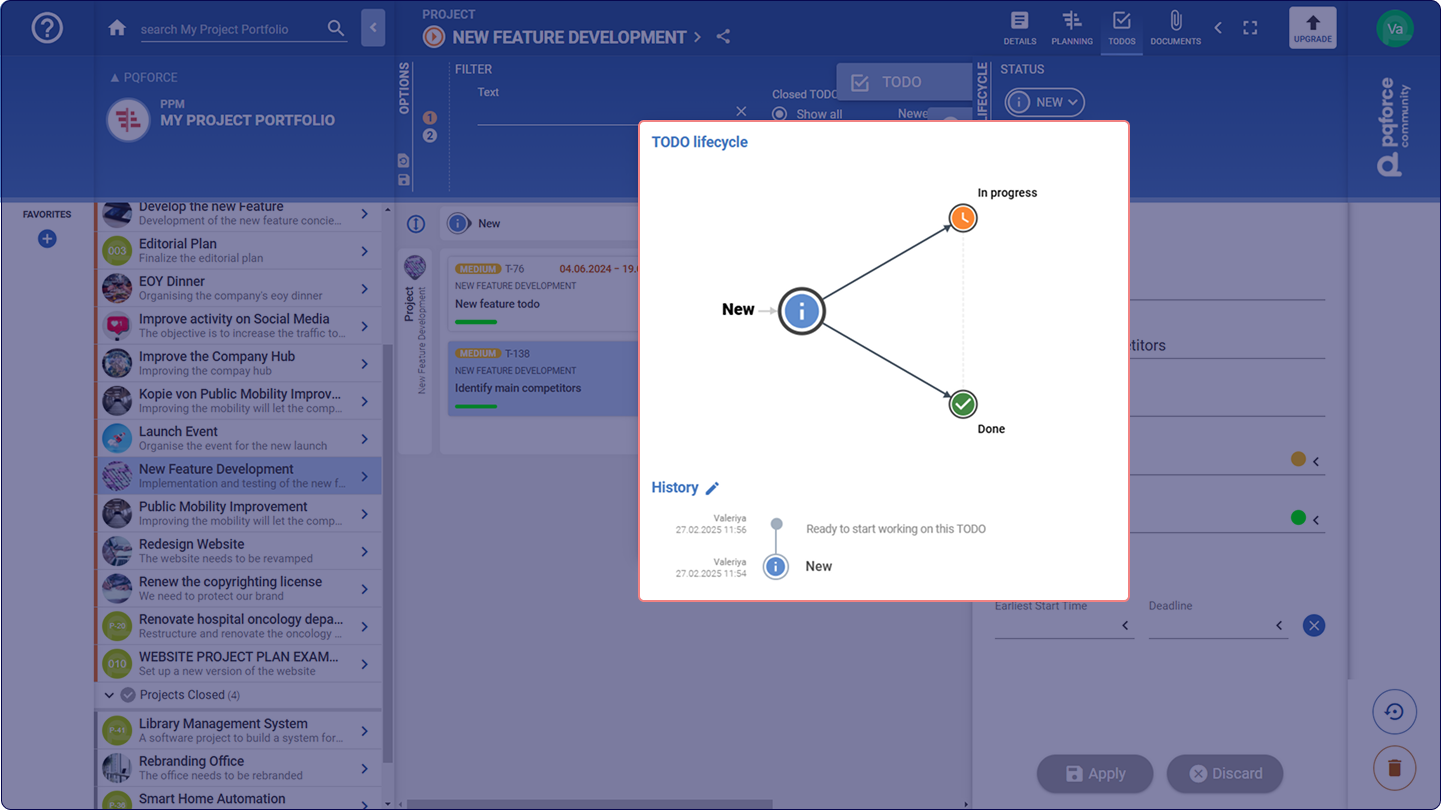
The Lifecycle shows the possible statuses and transitions. The current status is highlighted in a larger size and a black outline.
A status change can be triggered by clicking on the icon of the desired subsequent status. This action opens a pop-up window, allowing the user to enter a comment, which is then saved in the built-in history view. This feature maintains a detailed record of all previous status changes, including timestamps and any associated comments.
Additionally, users can add a new comment without altering the current Lifecycle status by clicking on Enter comment, represented by a Pencil icon  . This option generates a history entry, preserving contextual information for reference.
The functionalities and availability of this section may vary depending on your PQFORCE edition.