Projects
This view provides a customizable overview of all active projects existing in the PQFORCE system.
Workspace
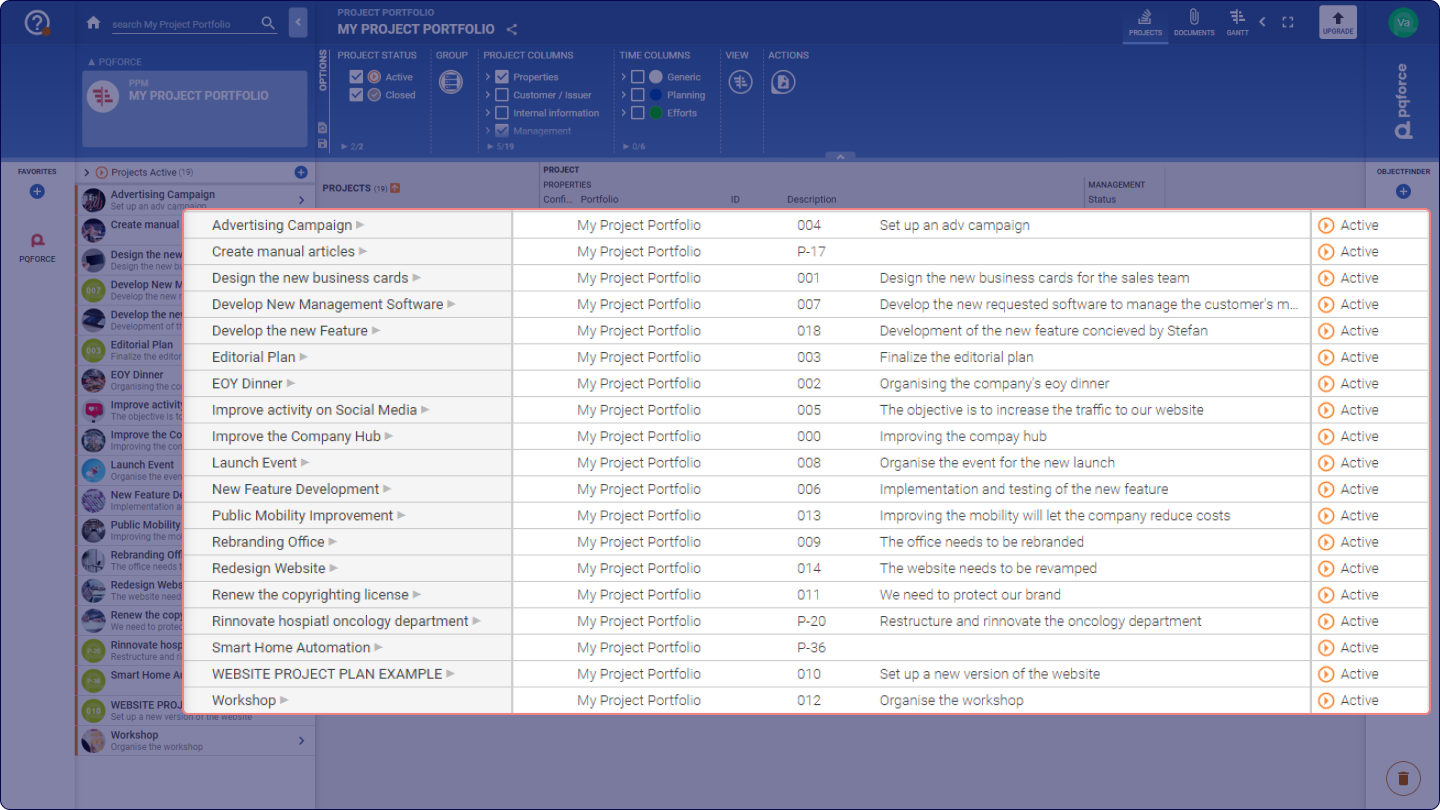
Within the workspace, this view features a table where all the projects within the system are arranged as rows, and the properties of these projects are organised as columns. The information presented depends on the settings selected in the Options Area. These settings play a dual role: first, they dictate which projects are showcased in the project portfolio, and second, they determine which properties appear as columns in the workspace table.
Column filtering
Each column in the table can be used to refine the information displayed in the workspace through sorting or filtering based on the information in each column.
Clicking on the heading of a column organises projects according to the information in that column in ascending order. Repeated clicks on the column heading toggle the direction from ascending to descending and vice versa.
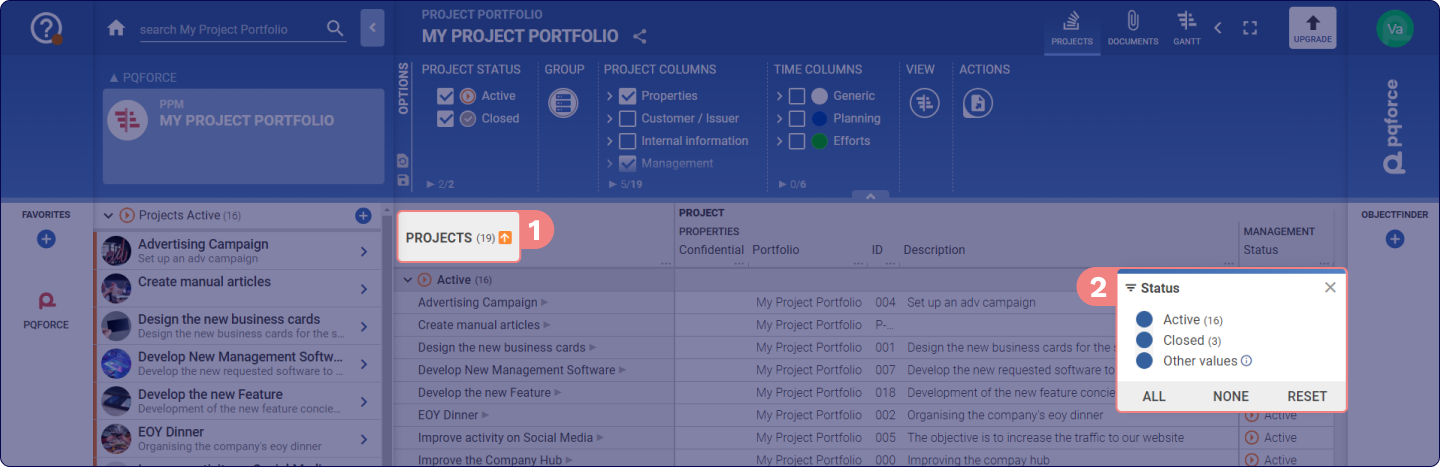
1 Clicking on the three small dots adjacent to the heading of a column enables the setting of a filter for the corresponding column. All available values in this column are presented, and selections or deselecting of values can be performed. Clicking on ALL selects all values, while clicking on NONE deselects all values. The RESET option restores the previously set selection before opening the filter. Filter configurations can be applied across multiple columns simultaneously to precisely narrow down the selection of projects.
2 Clicking on the symbol next to the heading of the PROJECTS column deactivates all filters.
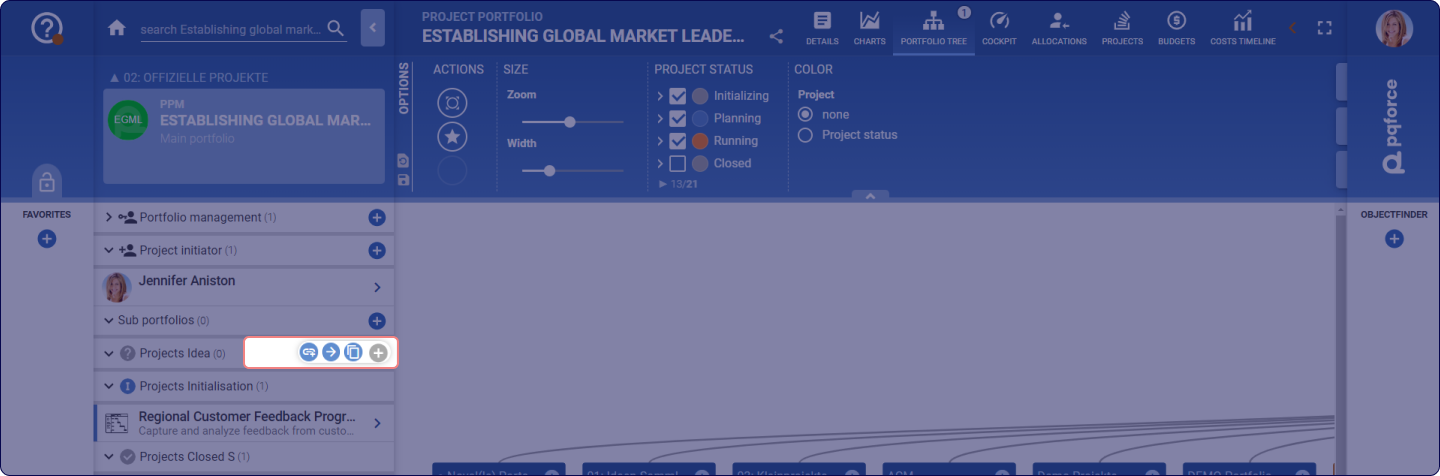
Move and Link Projects in the Navigator
 at the desired destination.
Options Area
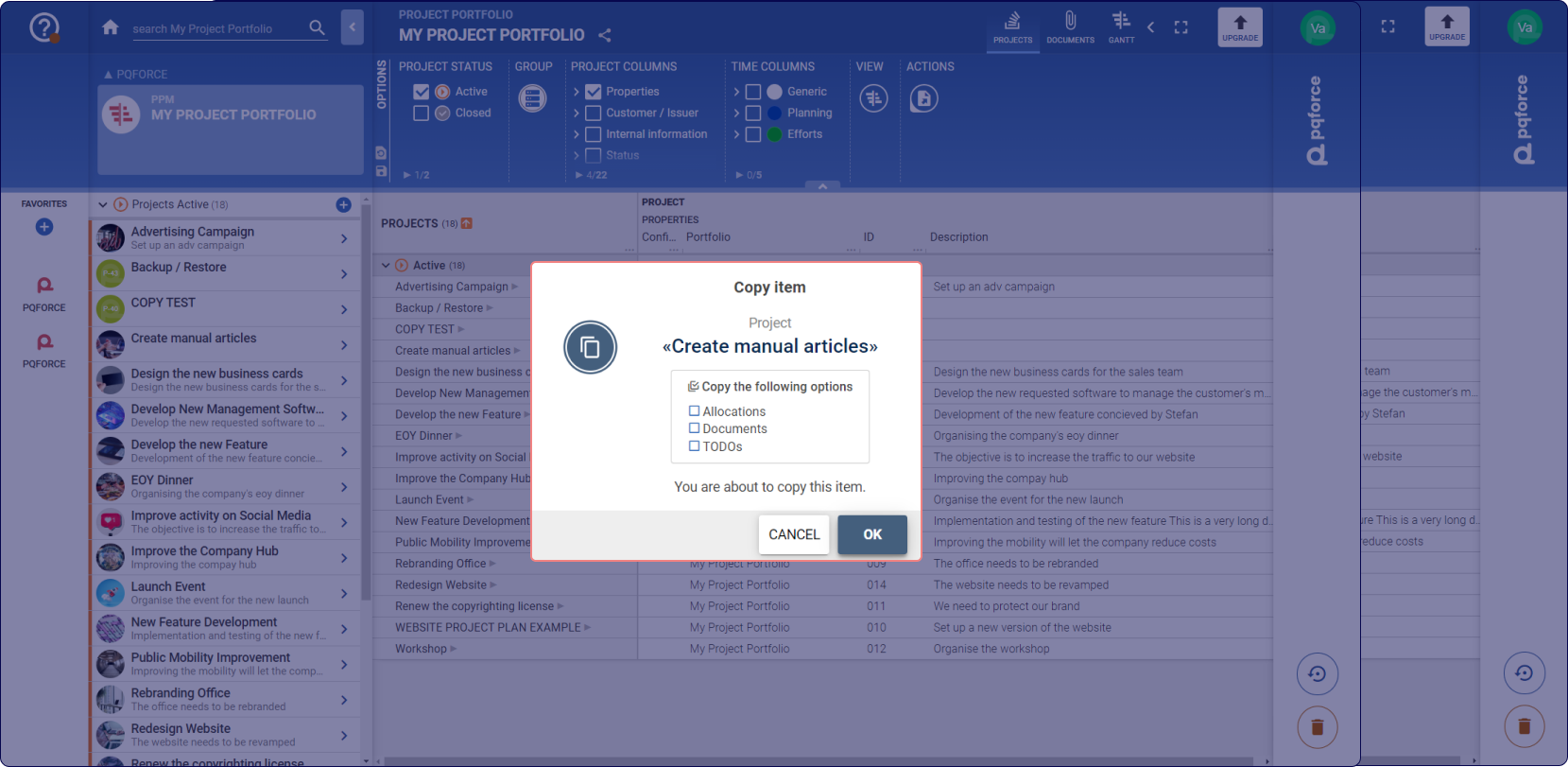
The following section describes in detail which settings can be made in the Options Area.
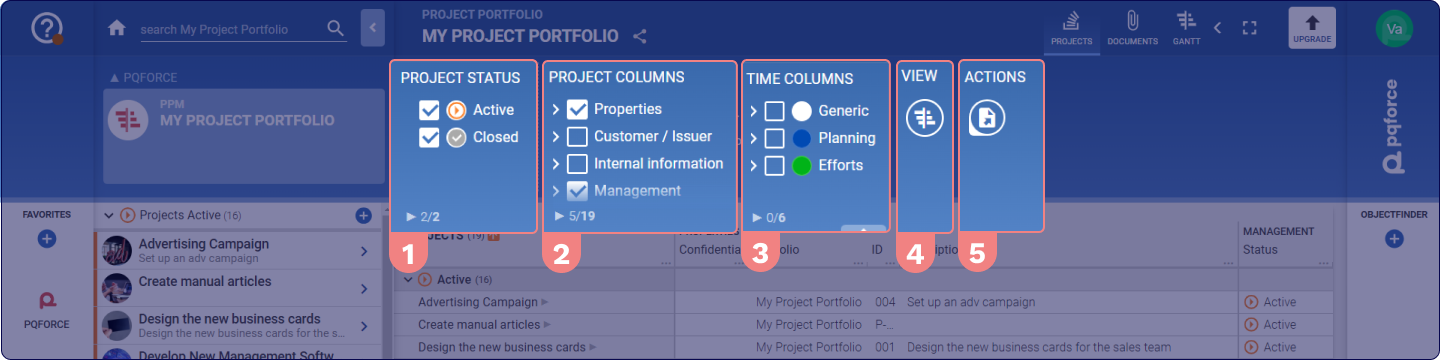
1 PROJECT STATUS: These check boxes can be used to determine which projects are displayed in the workspace, depending on their Lifecycle status.
2 PROJECT COLUMNS: Here the columns in the workspace can be extended or restricted with attributes of the DETAILS view of the projects.
3 TIME COLUMNS: Here the columns in the workspace can be expanded or restricted with values from the columns on the PLANNING view of the projects.
4 VIEW:
-
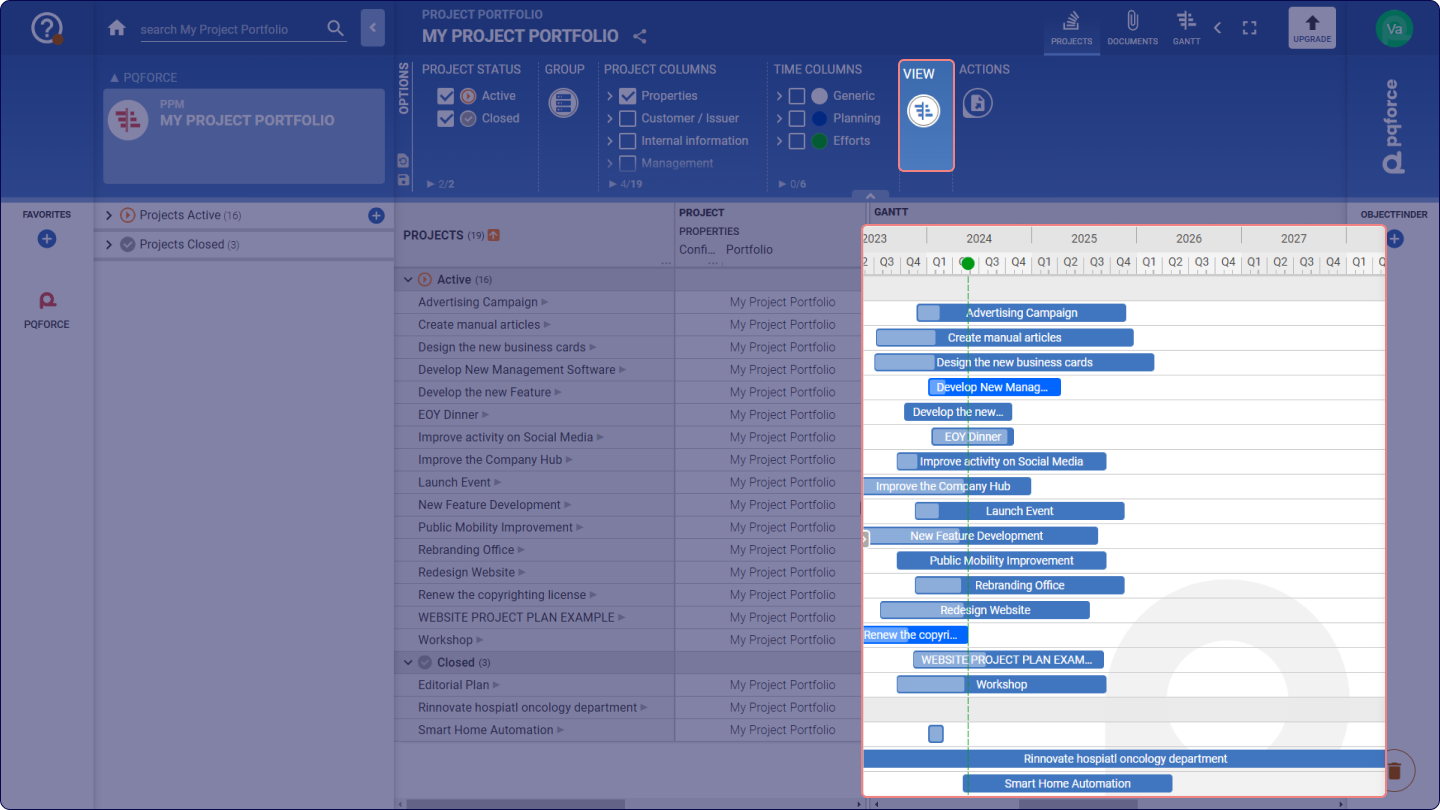
GANTT: Enable or disable a Gantt overview at the main project level to provide a snapshot of the time horizon for each project.
-
PROJECT REPORT (This option is available only for editions higher than PQFORCE Smart): Here, the columns in the workspace with status, trends and comments of the indicators from the last recorded status reports of the projects can be expanded or restricted.
-
CURRENCY (This option is available only for editions higher than PQFORCE Smart): A different currency can be set for the view.
5 ACTIONS: Actions for the active view can be performed here.
Export: Here the currently displayed table can be exported.