Navigator
The Navigator comprises a sidebar positioned on the screen's left side, serving as a means of traversing various sections within PQFORCE.
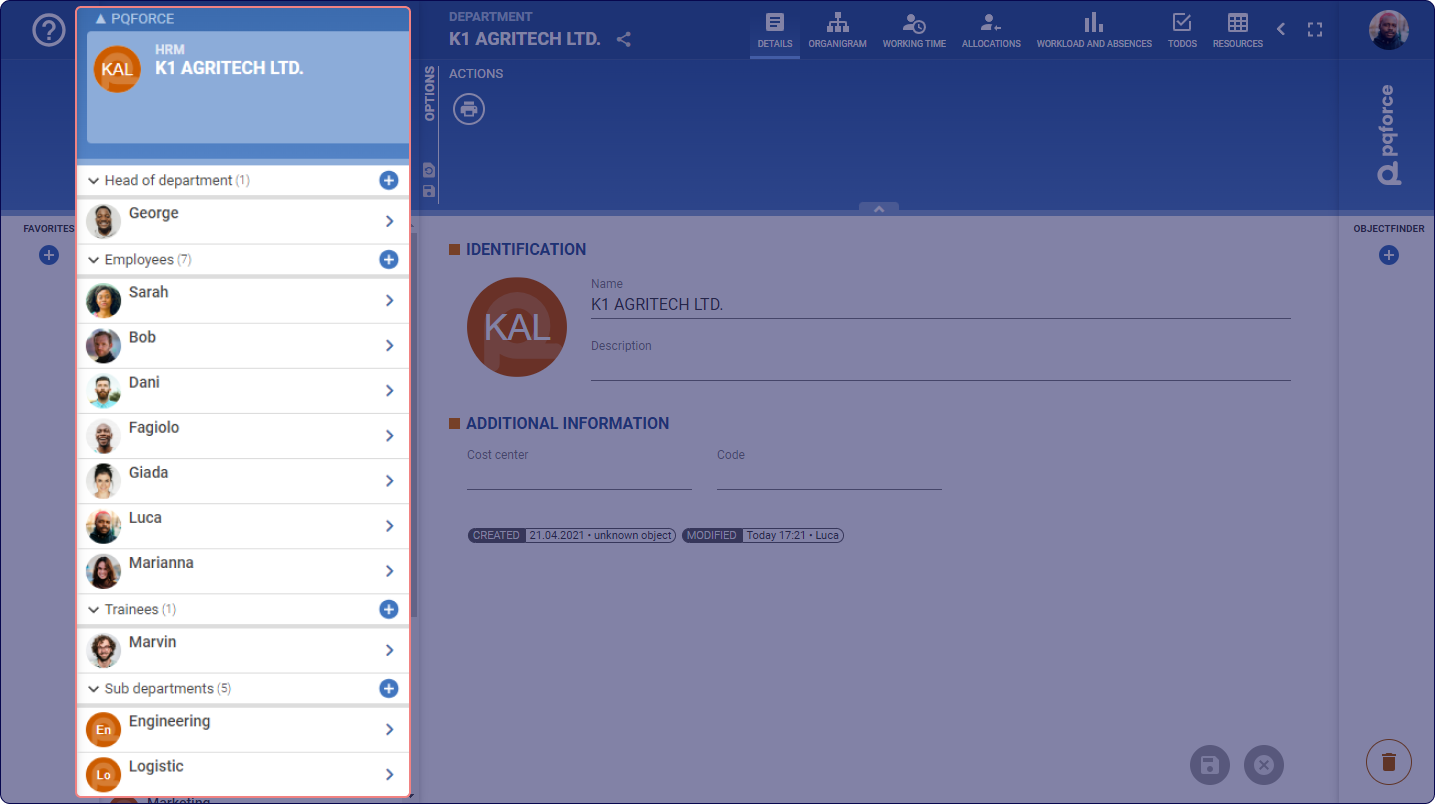
Active Object
The active object or module holds a central highlight in the upper section of the navigator. Displayed here are the image, name, and description of the element, along with its affiliated module. Just above the active object, the parent object’s name is displayed.

Related and subordinate objects
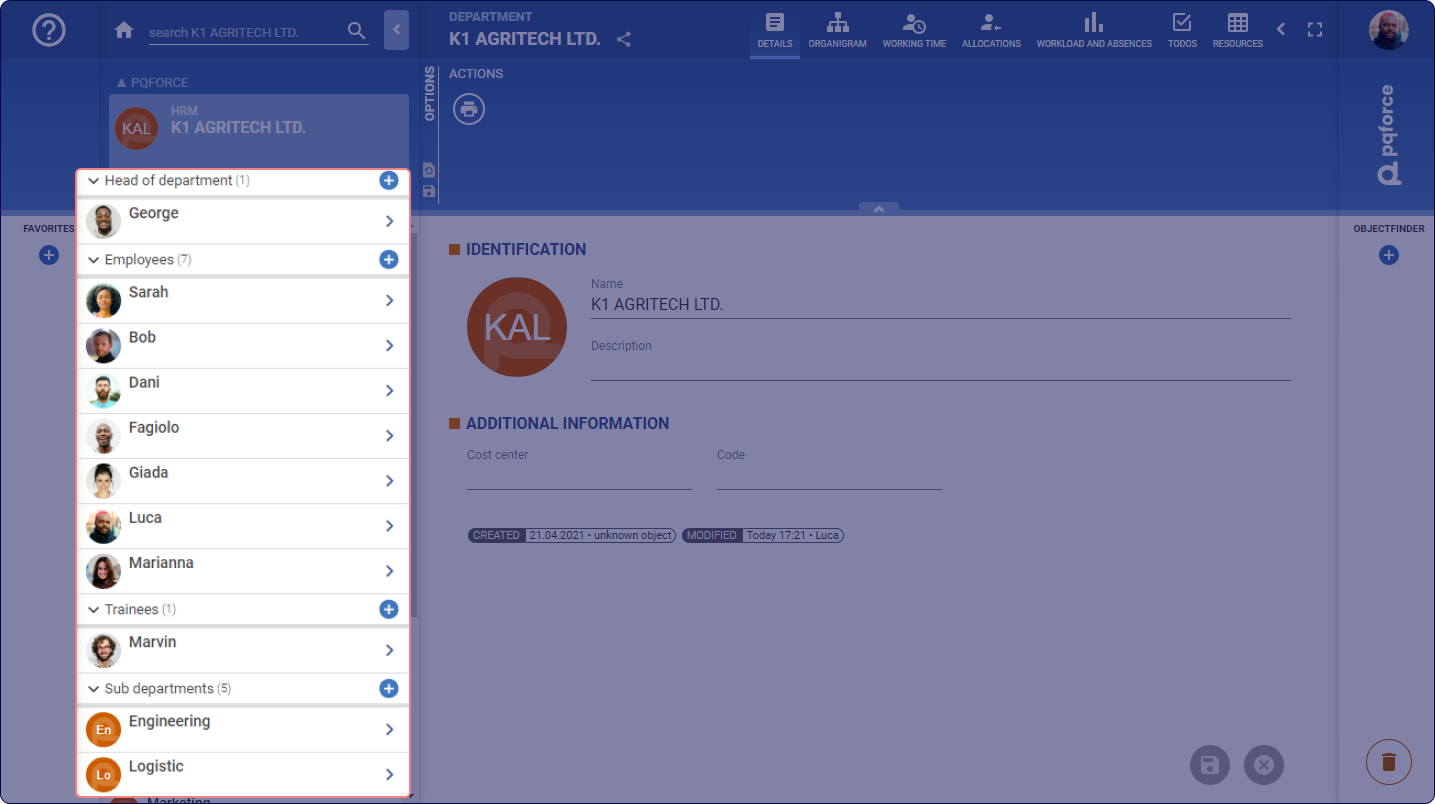
Beneath the active object within the navigator area, a list of items related to or belonging to the active object is displayed. These items are systematically categorised for enhanced organisation. If existing, categories distinguished by a double arrow icon denote types of relationships, while the remaining categories encompass elements that are directly subordinate to the active element. Each of these categories can be expanded or collapsed using the Arrow button  .
Selecting any listed object, whether related or directly subordinate, displays its information in the main workspace while the currently active object remains unchanged. This view mode facilitates rapid browsing of different objects, enabling easier comparison.
To activate a specific object, it's necessary to click the Arrow  next to the name of a linked or subordinate object in the Navigator list. This action will navigate, hence access, to the chosen object and make it the new active object.
Create new relations
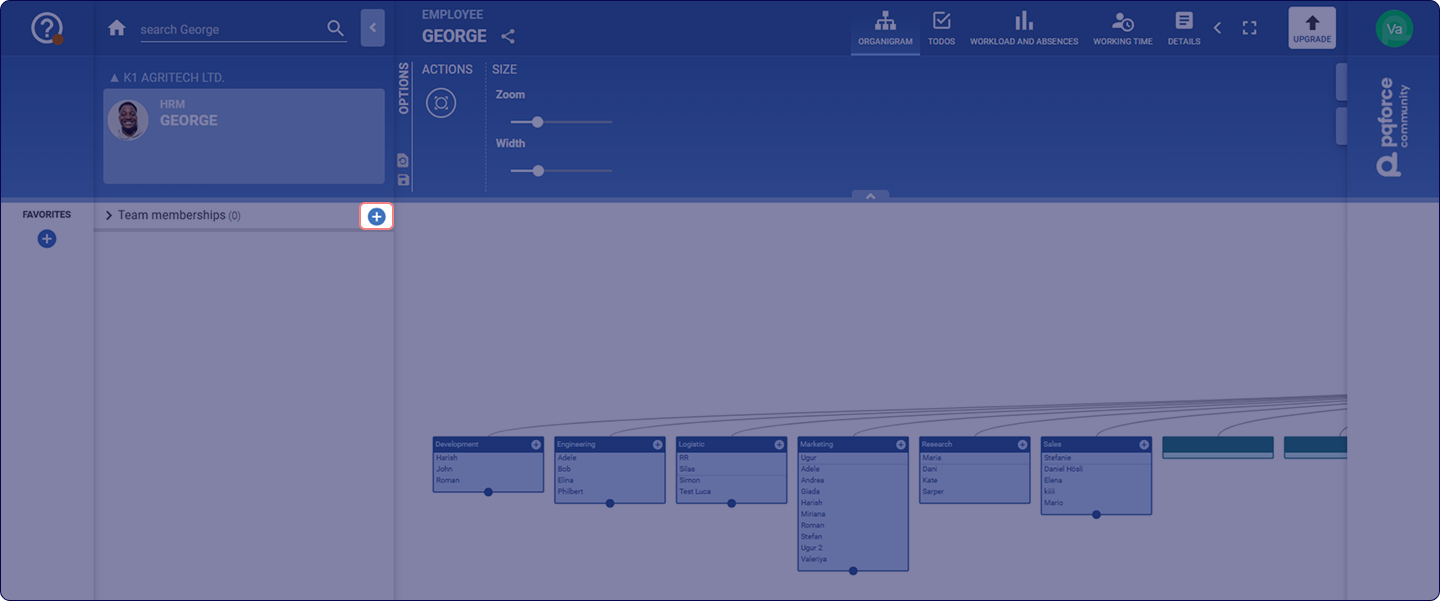
Directly in the Navigator, when possible new objects can be linked to the active object by clicking the Plus button (Create a link between items) next to the title of a category of choice with a double arrow. A selection list of objects suitable for the chosen relation will be displayed.
Create new objects

Likewise, new objects subordinate to the active object can be created directly in the Navigator by clicking on the Plus button (Create a new item) next to the title of a corresponding category. A new object will be created directly, which can then be edited.
Control elements

1 Home page button: Navigates to the PQFORCE home page.
2 Up arrow: Navigates to the parent object or module of the active object.
3 Search bar: Allows to search within the active object or module for the entered term. The identification characteristics of the objects are searched in each case. For a search for other characteristics or properties, the Advanced Search can be used.
4 Hide / show navigator: Closes and opens the navigator to provide more space in the workspace. Alternatively, the navigator can be closed or opened with function F4.
It’s possible to return to the previously visited page using the browser's designated back button.