Gantt
This view offers a comprehensive display of all Gantt plans derived from the respective PLANNING views of individual projects within the overall active project list. Within higher editions than PQFORCE Smart, it serves as the hub for creating and managing global milestones.
Workspace
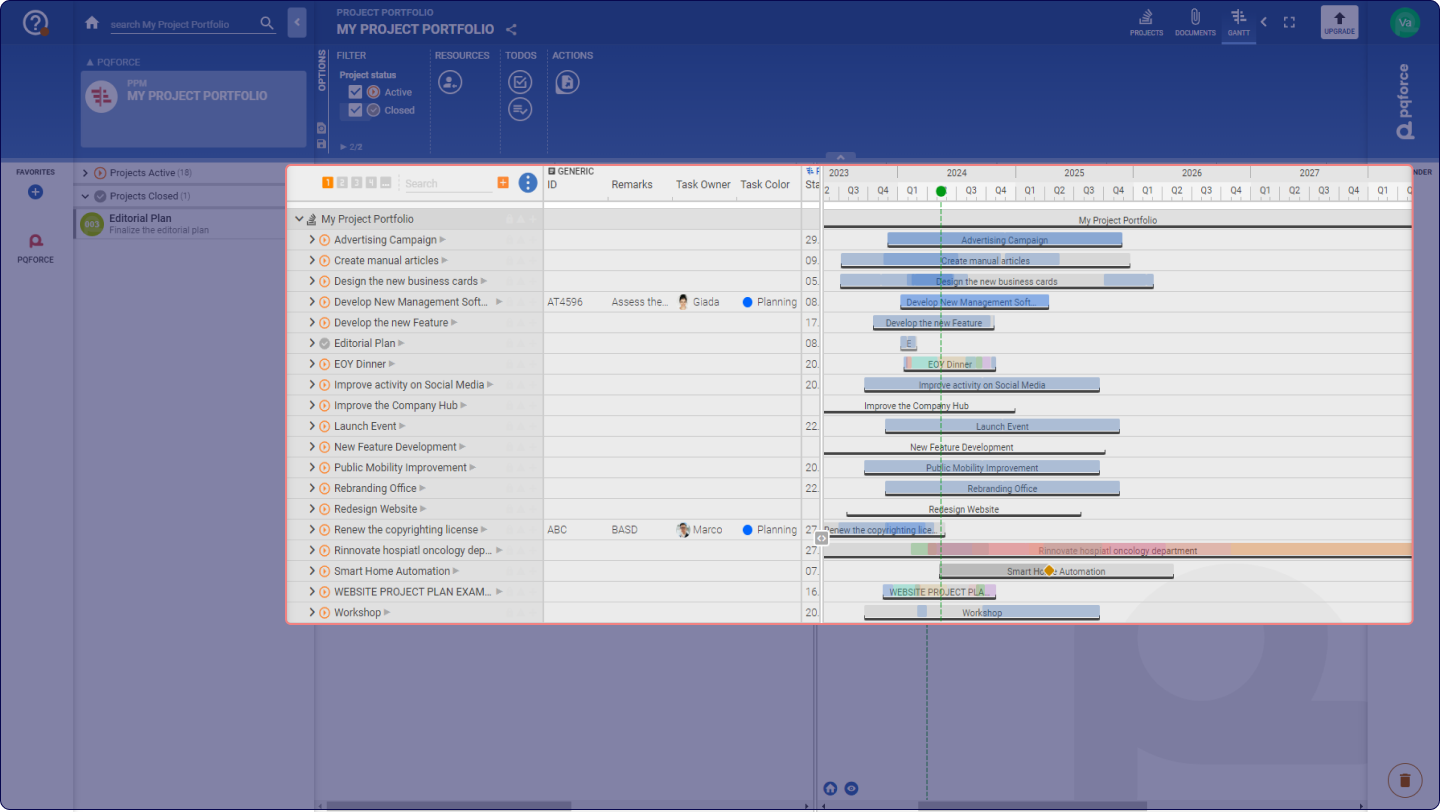
In the PROJECTS view workspace, all projects contained in the PPM module are displayed in the form of a Work Breakdown Structure, a hierarchical decomposition of the work needed to complete a project into smaller, more manageable components, accompanied by an associated Gantt chart.
The Gantt chart at the project list level features the following hierarchical elements:
-
Bars representing the projects.
-
Bars representing the tasks of individual projects.
-
Diamonds representing the milestones of individual projects.
-
Black lines representing the folders created within individual projects.
To learn how to use and manipulate the Gantt chart in PQFORCE, please refer to the project's PLANNING view article.
The only exception is the management of global milestones, available only for editions higher than PQFORCE Smart.
Manage global milestones
The functionalities and availability of this section may vary depending on your PQFORCE edition.
 .
Options Area
The following section describes in detail which settings can be applied in the Options Area.
FILTER
These check boxes influence the information displayed in the workspace.
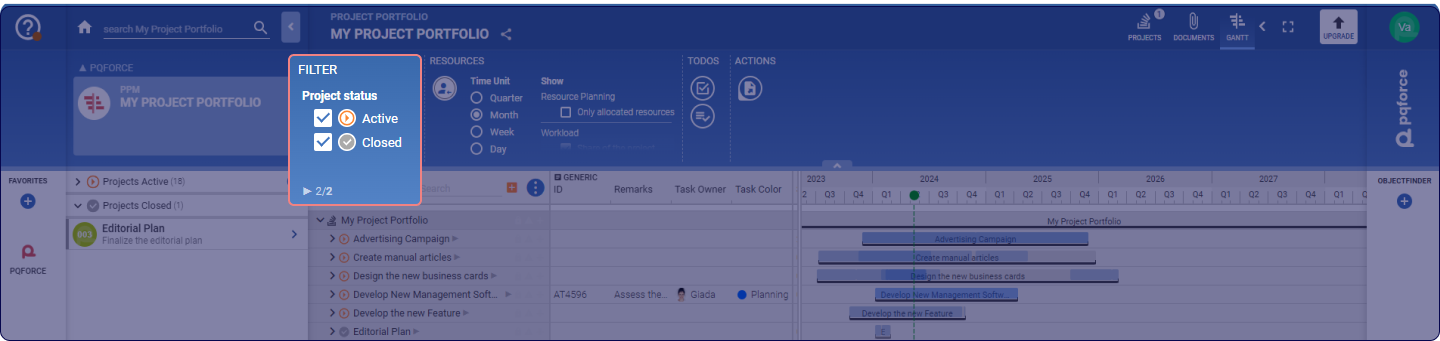
Project status: These checkboxes can be used to determine which projects are displayed, depending on their Lifecycle status.
RESOURCES
Adds resource planning capabilities to the view.
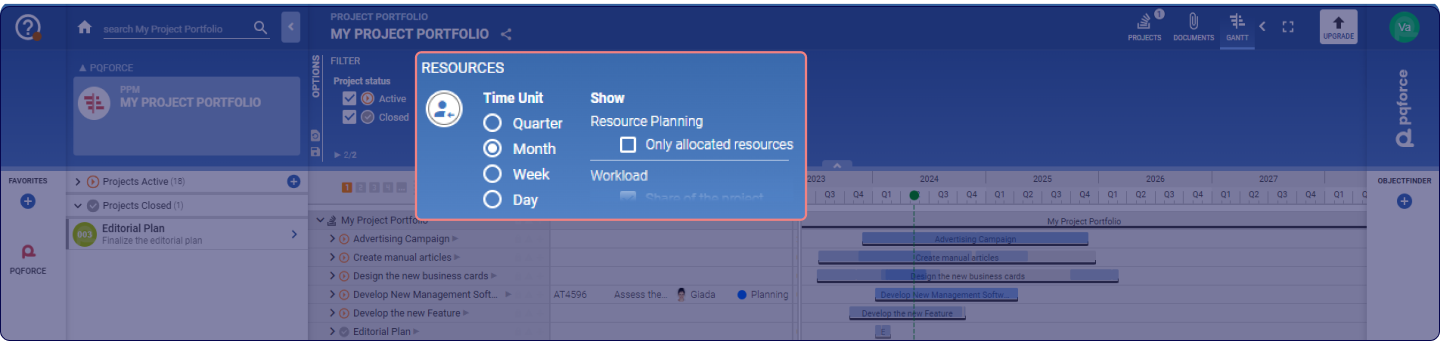
Plan resources
The functionalities and availability of this section may vary depending on your PQFORCE edition.
This section opens in the secondary workspace a listing of the resources from the organisation chart and their workload diagrams.
The left part of the secondary workspace contains the resources from the organisation chart, structured with the same hierarchy. At the top, planned effort can be compared with the sum of the allocated effort for the task selected in the primary workspace.
The right part of the secondary workspace contains the resource workload diagrams. Using drag & drop, the displayed area can be moved both horizontally and vertically when the mouse cursor is in the secondary workspace.
For a detailed explanation of workload charts, the article on WORKLOAD AND ABSENCES view can be viewed.
With the button Move and zoom the Gantt synchronously to the resource planning the primary workspace is synchronized with the secondary workspace. The displayed time ranges and zoom factors are aligned so that when the displayed time range of the resource planning is moved, the Gantt chart is also moved and when the scaling of the resource planning is changed, the scaling of the Gantt chart is also adjusted accordingly.
The Go to today button centres the displayed area on today's date.
TODOs
Extends the view with options for TODO planning.
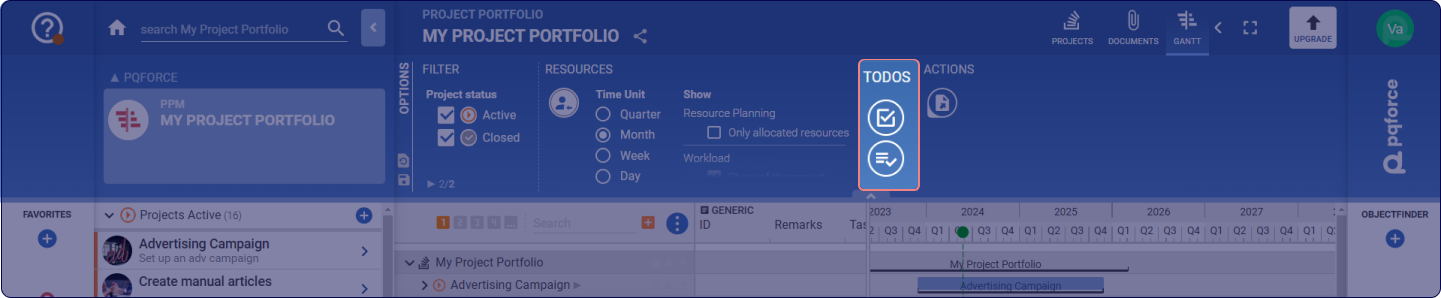
- Show Kanban View: Opens the Kanban board in the secondary workspace, providing the capability to schedule TODOs within the project and its tasks. The first row on this Kanban board corresponds to the selected item in the primary workspace, while the second row displays all TODOs linked to the entire project.
- Show List View: Opens the list view in the secondary workspace, which allows scheduling of TODOs in the project and its tasks.
- Closed TODOs: Filters whether and which completed TODOs are displayed in the workspace.
- Show: These checkboxes can be used to determine which information is displayed in the secondary workspace.
- Sub-Tasks: If this checkbox is active, all TODOs that originate from all subtasks of the task selected in the primary workspace will also be displayed in the secondary workspace. In the Kanban board, these are displayed in an additional line.
- Properties: Contains attributes from the TODO tab in the Side Tab for a TODO and for comments or markers. This checkbox is only available when the list view is enabled.
- Relations: Contains the relations a TODO can have to other objects in PQFORCE. This checkbox is only available when the list view is enabled.
For a detailed explanation on how to use Kanban board and list view, the TODO view article can be viewed.
ACTIONS
Actions for the active view can be performed here.
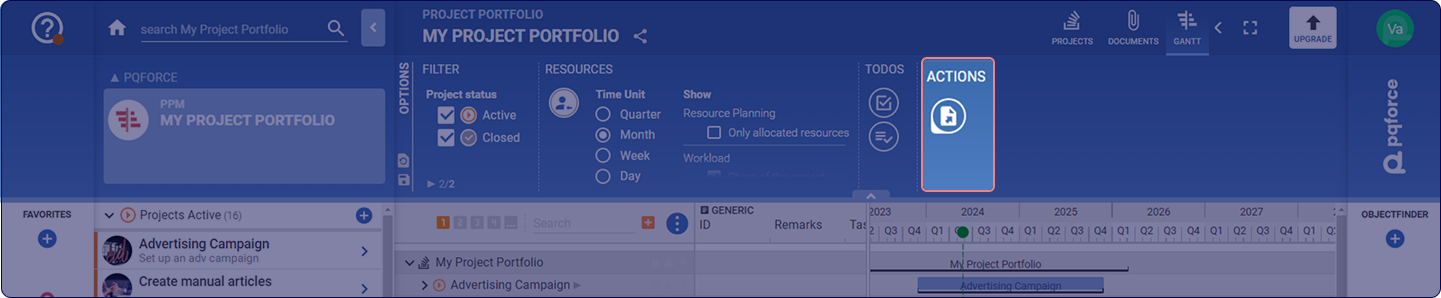
Export: Here the currently displayed project list GANTT can be exported.