Object Finder
This section is available only for editions higher than PQFORCE Smart
In the Object Finder bar, the logged-in user can open one or more Object Finders, which can be helpful when moving and copying objects.
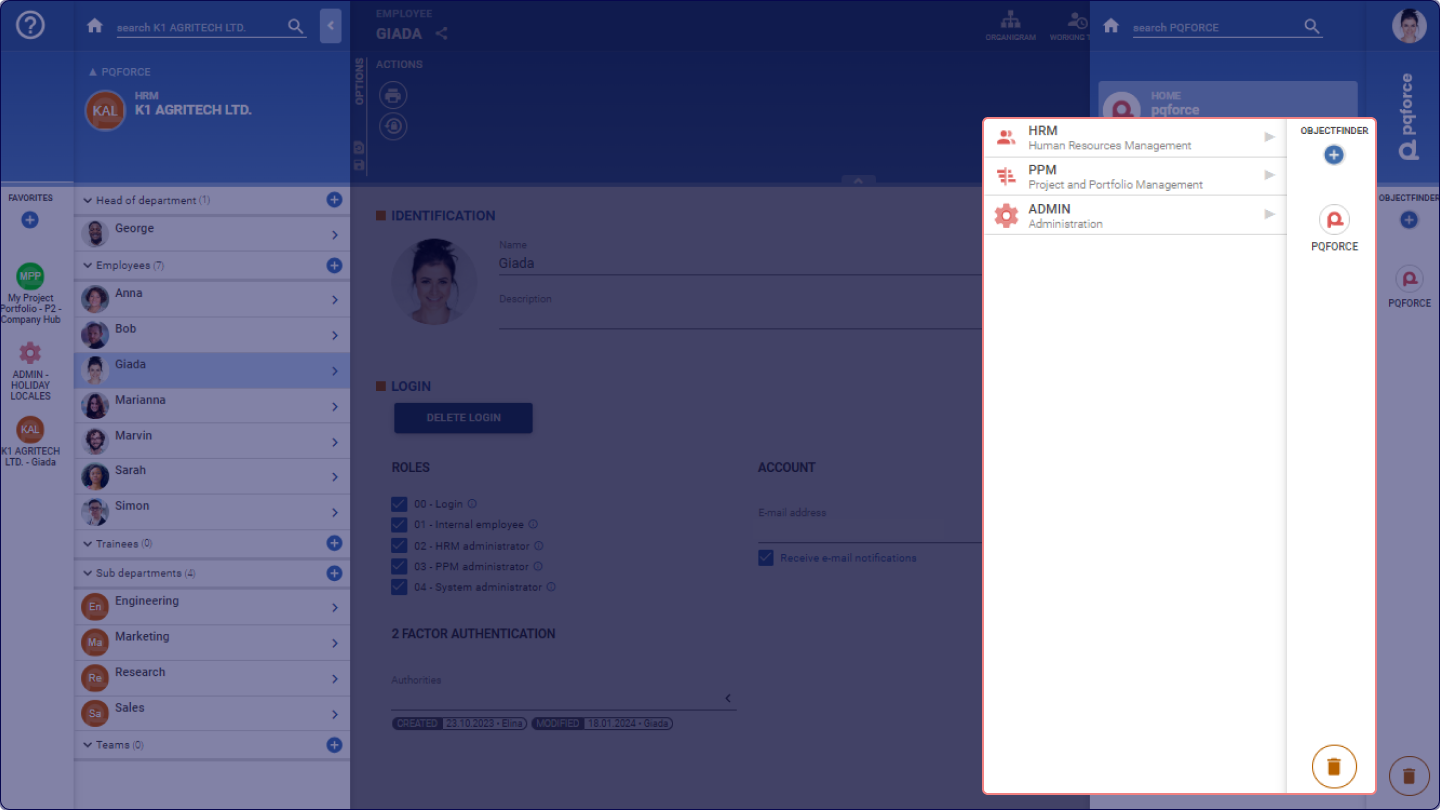
Create New Object Finder
By selecting the Plus symbol  in the right sidebar on the screen beneath the Object Finder label, it is possible to create a new Object Finder. This newly created Object Finder instantly emerges on the right side of the screen, resembling a duplicate of the Navigator. Comparable to the Navigator, the modules can be explored for objects; however, when an object is chosen, it won't open in the workspace. Therefore, no navigation to the modules or objects takes place.
It should be noted that Object Finders are not permanent. They are deleted when you log out. However, the existing Object Finders are saved when a favourite is created and will be available again when this favourite is called.
Arrange and delete Object Finder
The order of the Object Finders can be changed by moving individual Favourites down or up using Drag & Drop.
An Object Finder can be deleted by dragging and dropping it into the Trash Bin  at the bottom right. All Object Finders are automatically deleted from the current view when navigating away.
Move or copy objects with the Object Finder
When within a tree view (portfolio tree / organisational chart), the relocation or duplication of objects can be accomplished by locating a relevant object in the Object Finder. Subsequently, by dragging and dropping, the object can be moved to the desired new position within the tree.
As a supplementary feature, it's possible to drag any object from the Object Finder and drop it into a text field. This action results in the name of the object being copied into the text field.