Advanced Search
The Advanced Search functionality facilitates the location of every project, TODO, resource, department, or team within the system by specifying precise requirements for a search.
Workspace
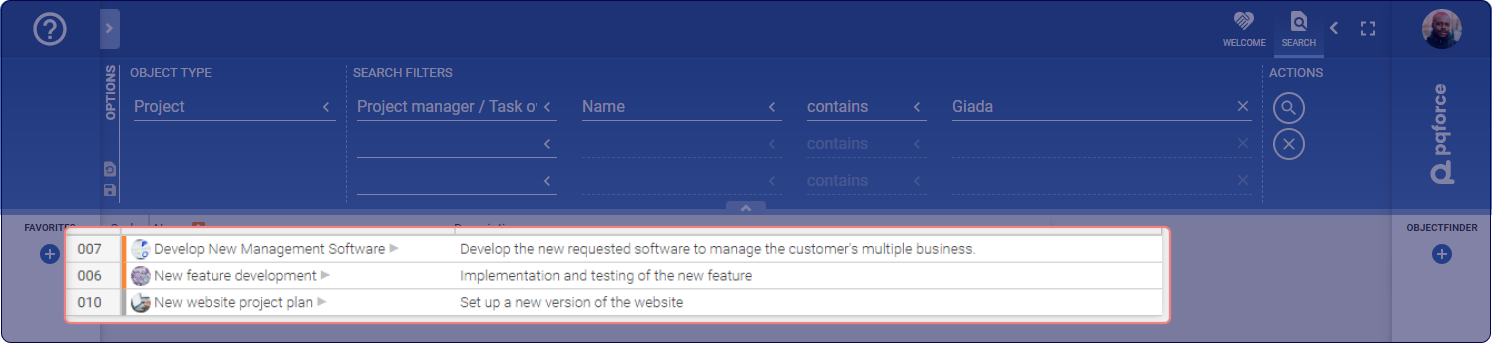
The primary area of the workspace displays search results, presented in a table format, showcasing the ID, name, and description of the respective findings.
Sorting the search results in ascending or descending order can be achieved by clicking on the header of any available column.
Options Area
Object Type
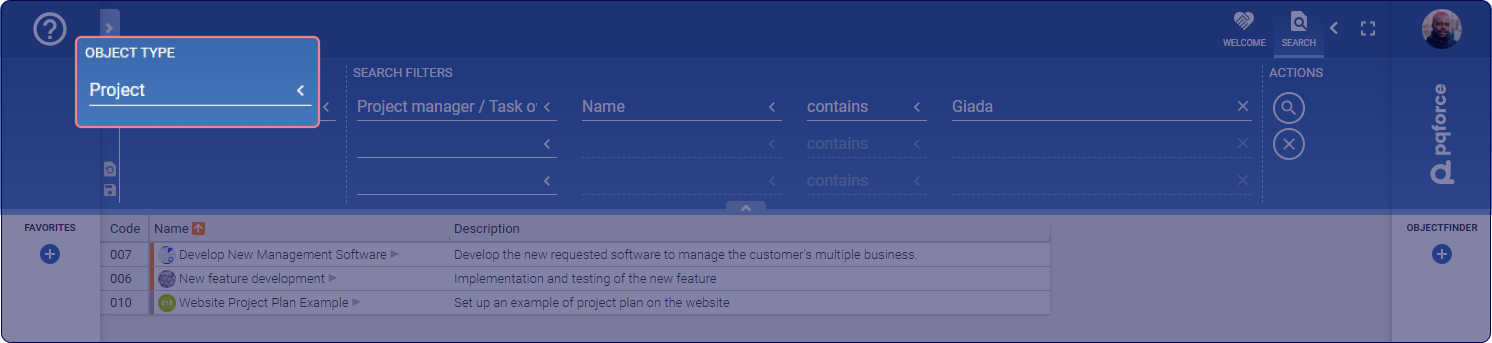
This section allows searching within the system's Object Type. Different filtering options will be offered based on the Object Type and the Search Filter.
Search Filter
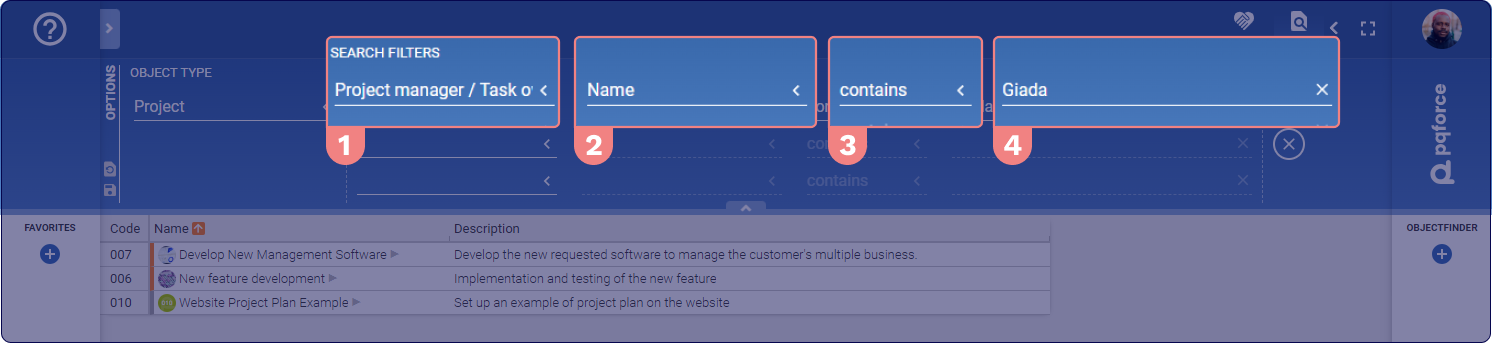
The Search Filter permits the setting of specific search filters for parameters related to the previously selected object in the Object Type option.
The Options Area presents three rows to enter search filters, returning search results that meet the requirements of all filled rows. Rows can be left blank, though at least one must be filled in to initiate the search.
Each row comprises:
1 A search parameter, which may be an identifying attribute of the selected object or a relationship to another object within the system.
2 A second field to define an attribute for the first search parameter, if a relational parameter is selected.
3 A search condition, with options such as contains, is empty, and is not empty to specify the type of search conducted on the last field.
4 A text field to include the textual search value related to the previously set fields.
Setting a filter allows for a search for a specific project, TODO, resource, department, or team, taking into account the textual value searched within the associated attributes and relationships.
Actions
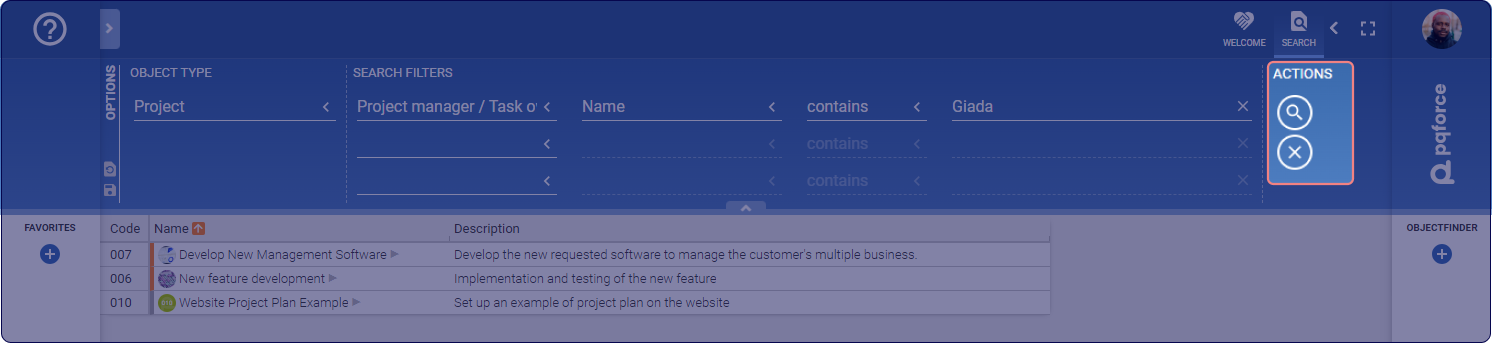
Actions available in the Advanced Search view include:
-
Start search, which begins the search using the entered filters in the "Search filters" option and allows for viewing of the search results, if any.
-
Reset, which clears the search filters to empty, enabling the start of a new search.