Side Tab
The PQFORCE Side Tab provides detailed access to object information and editing functions.
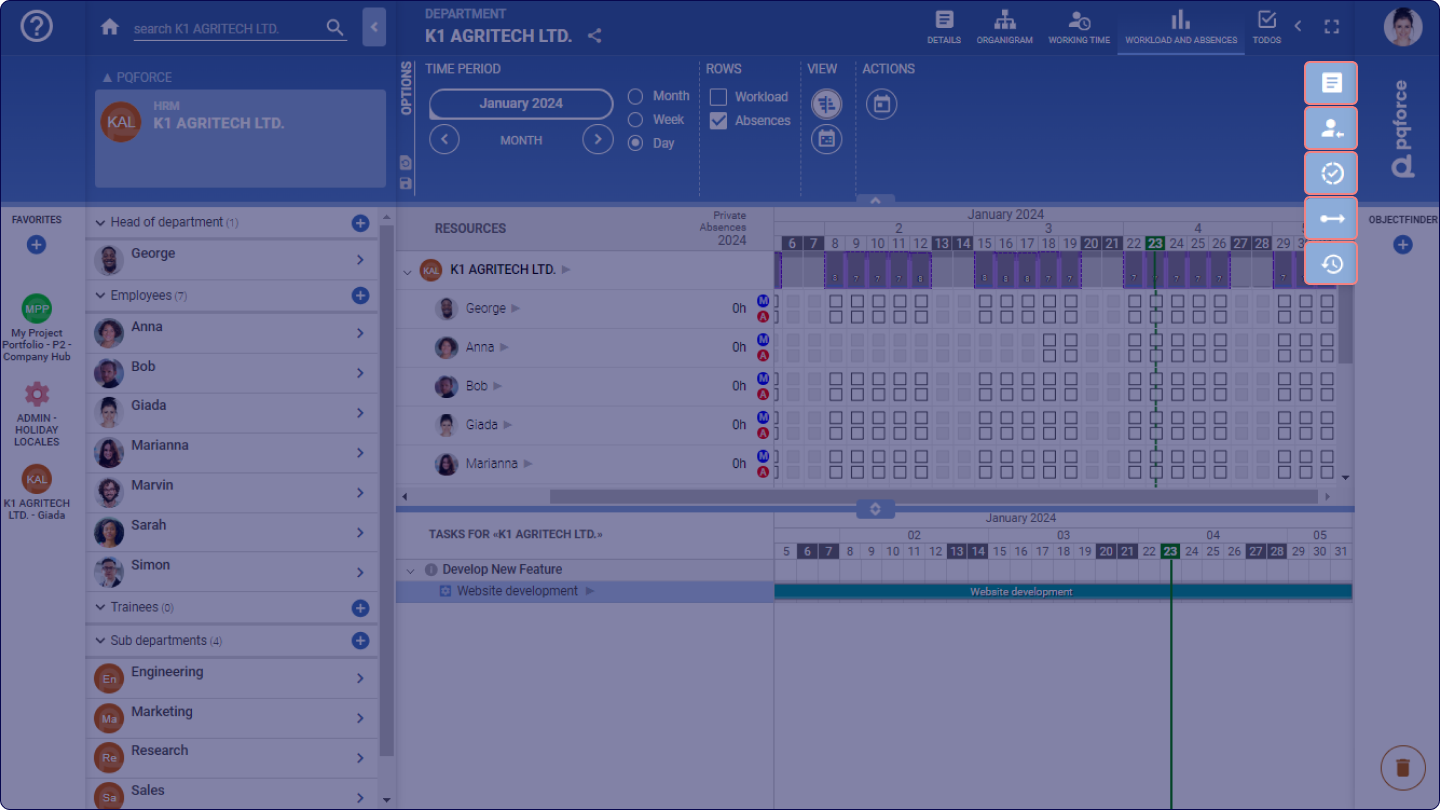
It allows users to view and edit information related to an object. Users can open the Side Tab by clicking on object references throughout PQFORCE, which appear as clickable names. The Side Tab displays on the right side of the screen and contains expandable sections for specific details. You can also open or close the Side Tab using the F2 key. Within the Side Tab, data for the current object can be viewed and modified directly.
Side Tabs and Their Functions
Generic Side Tabs
In PQFORCE such Side Tabs provide a unified format for viewing and editing data across various objects within different views. While the content adapts based on the selected object (such as an employee, project or other), the structure of these tabs remains consistent. This standard layout helps users quickly access relevant information, regardless of the type of object or view they are working with, streamlining navigation and data management within PQFORCE.
Details Tab
The Details tab is available within various views, where it adopts the name of the currently selected object (e.g., Employee, Project, etc.). This tab displays information specific to the selected object corresponding to its Details view, allowing to examine or edit object-specific data.
Relations Tab
This section is available only for editions higher than PQFORCE Smart.
The Relations tab allows to connect objects to other objects within PQFORCE, offering a comprehensive overview of all objects interconnected between each other. Multiple relations of the same type can be created as needed, while any existing relation can be easily removed by dragging it to the Trash Bin icon  .
Documents Tab
The Documents tab allows to attach files and website links related to the active object.
Specific Side Tabs
In addition to the generic Side Tabs, some views in PQFORCE offer specialised Side Tabs to provide targeted tools for managing various objects. For tasks, these include the TASK tab for key task details and categorisation, the ALLOCATIONS tab for assigning resources, the Progress tab to track task completion, the Dependencies tab for setting task relationships, and the Logbook tab for recording and managing comments. Each tab offers object-specific management options, enabling users to organise, monitor, and adjust tasks with precision.
Apply / discard modified data
While making edits in the Side Tab, users can save changes by clicking the Apply button or discard them with the Discard button, located in the bottom left corner of the screen. Changes are only saved when the Apply button is selected. PQFORCE will notify users of any unsaved changes when closing the Side Tab, switching views, or selecting a different object.
Note that switching tabs is permitted, but applying or discarding changes will affect all open tabs, so all edits should be finalised before navigating away from the Side Tab or changing views.