Report
This section is available only for editions higher than PQFORCE Smart
The report view of a project shows the last valid project report according to the report period. Older project reports can be opened in the report view in the navigator section Reports: Project report. This navigates to the report, which causes the other views in the Title Bar to disappear. To navigate back to the project, the name of the project can be clicked at the top of the navigator.
What is a project report?
A project report (often also status report) is a report on the status of a project at the end of a certain period. The success or failure of a project is measured by various dimensions, so-called indicators. Generally, these indicators are given a status traffic light so that the health of the project can be quickly checked in a visual way.
At the level of the portfolio above the project, the health of all the projects it contains can be monitored in the same way.
The creator of the project report has the possibility to describe the events in the project during the reporting period and to comment on and justify the development of the states of the individual dimensions in order to provide other employees as well as control and management persons in the company with an efficient overview of the current project status.
Workspace
PROJECT REPORT
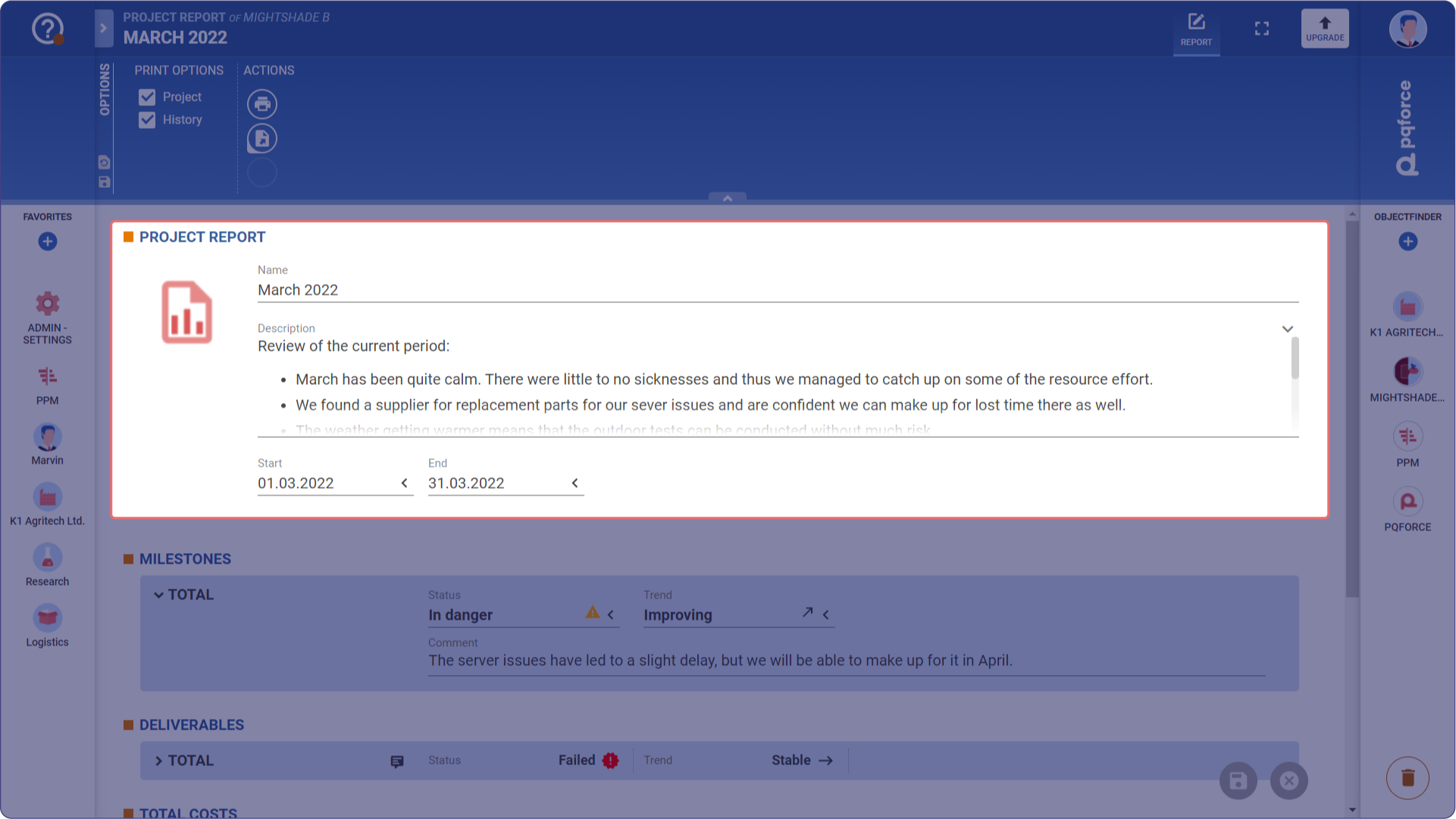
In this section, the identification characteristics of the active project report are entered.
- Image: The image serves as a visual identifier of the project report. An image can simply be dropped here via drag & drop. Alternatively, an image can be copied and then pasted here by clicking on the circle and then pressing the CTRL+V key combination.
- Name: This is the name of the project report. It is used to distinguish the different project reports.
- Description: The description is a rich text field and can be used to enter a detailed description for the project report.
- Start and End: These two date fields determine the reporting period - the time period covered by the active project report. The end date or the key date determines the status at the end of the period.
STATUS INDICATORS
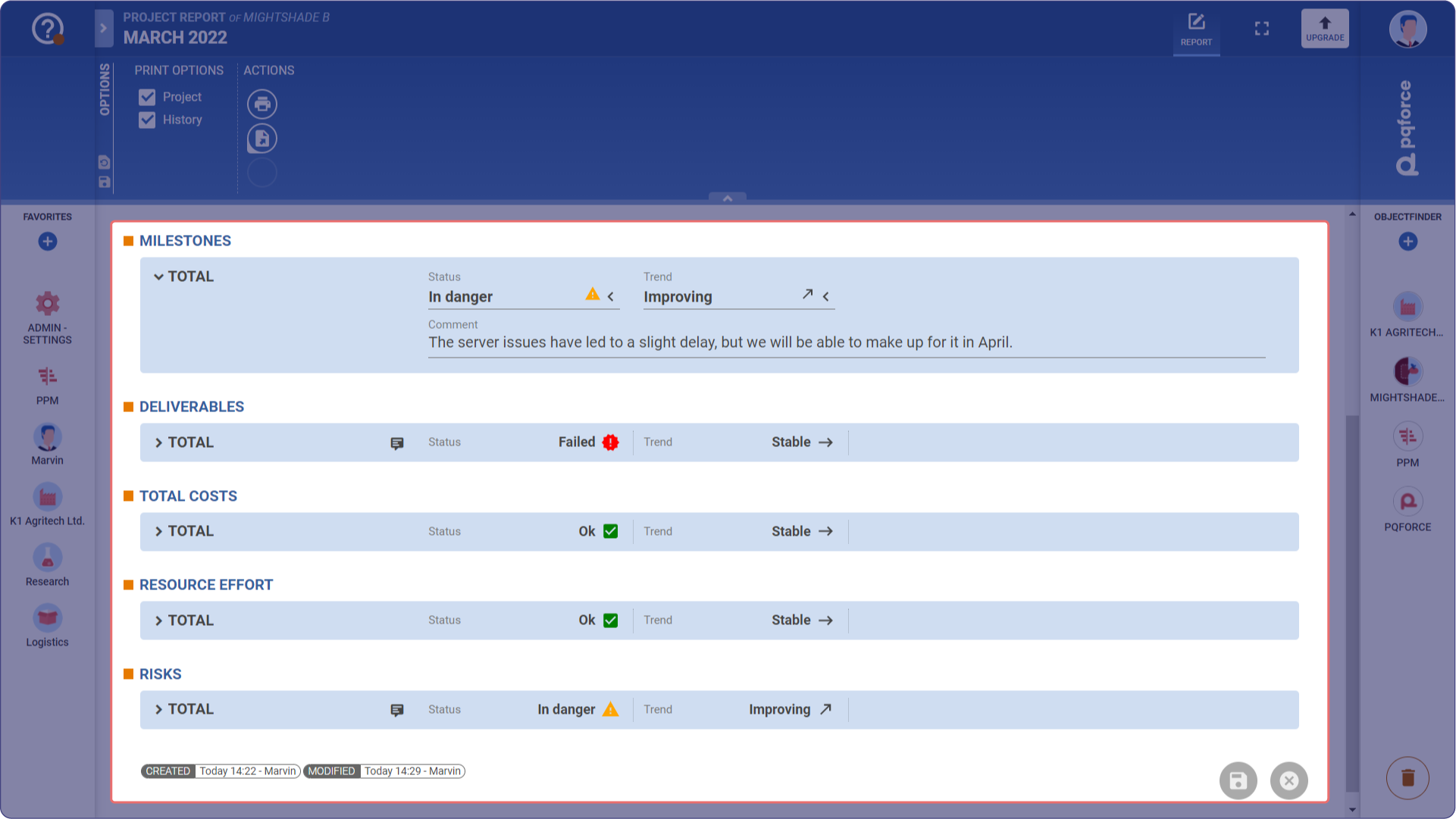
This section contains the status indicators of the project, divided into different dimensions.
For each dimension, a traffic light can be set at Status, which describes the status of the respective indicator dimension on the key date of the project report. The status values are Failed (red), In danger (orange) and Ok (green).
In addition to the status, a trend can also be set, which corresponds to the outlook for the next reporting period. The trend values are Worsening (descending arrow), Stable (horizontal arrow) and Improving (ascending arrow).
Additionally, a comment can be written to justify or comment on the selection of status and/or trend. It should be noted that the completed status and trend values represent a qualitative and subjective assessment by the author and do not have to correspond to objective statements.
The following indicator dimensions are available to measure project status:
- MILESTONES: Describes the status of the temporal aspects of the project such as milestones, completion dates of project phases or important release dates.
- DELIVERABLES: Describes the status of deliverables such as submitted documents, realized prototypes or manufactured (partial) products.
- TOTAL COSTS: Describes the financial status of the project.
- RESOURCE EFFORT: Describes the planned and performed employee effort as well as workload level in the project.
- RISKS: Describes the status of risk management in the project.
Options Area

The following section describes in detail which settings can be made in the Options Area.
PRINT OPTIONS
These check boxes can be used to determine what additional information is available on a printout of the active project report.
-
Project: If this check box is activated, the identification features of the project are also added to a printout of the project report.
-
History: If this check box is activated, the history of the project report is also added to a printout of the project report.
ACTIONS
Actions can be performed here for the active view.
-
Print: Here the current project report can be printed with the attachments selected under PRINT OPTIONS.
-
Export: Here the current project report can be exported as a management summary in .pdf format. Optionally, the Gantt plan of the project can be added as an attachment.