Worktime Overview
This section is available only for editions higher than PQFORCE Smart
The working time overview compares the expected target presence time with the recorded actual presence time and calculates the current flextime balance of the resource in question in real time.
In addition, the various absence types can also be monitored in this view and any flextime or absence corrections can be recorded.
Workspace
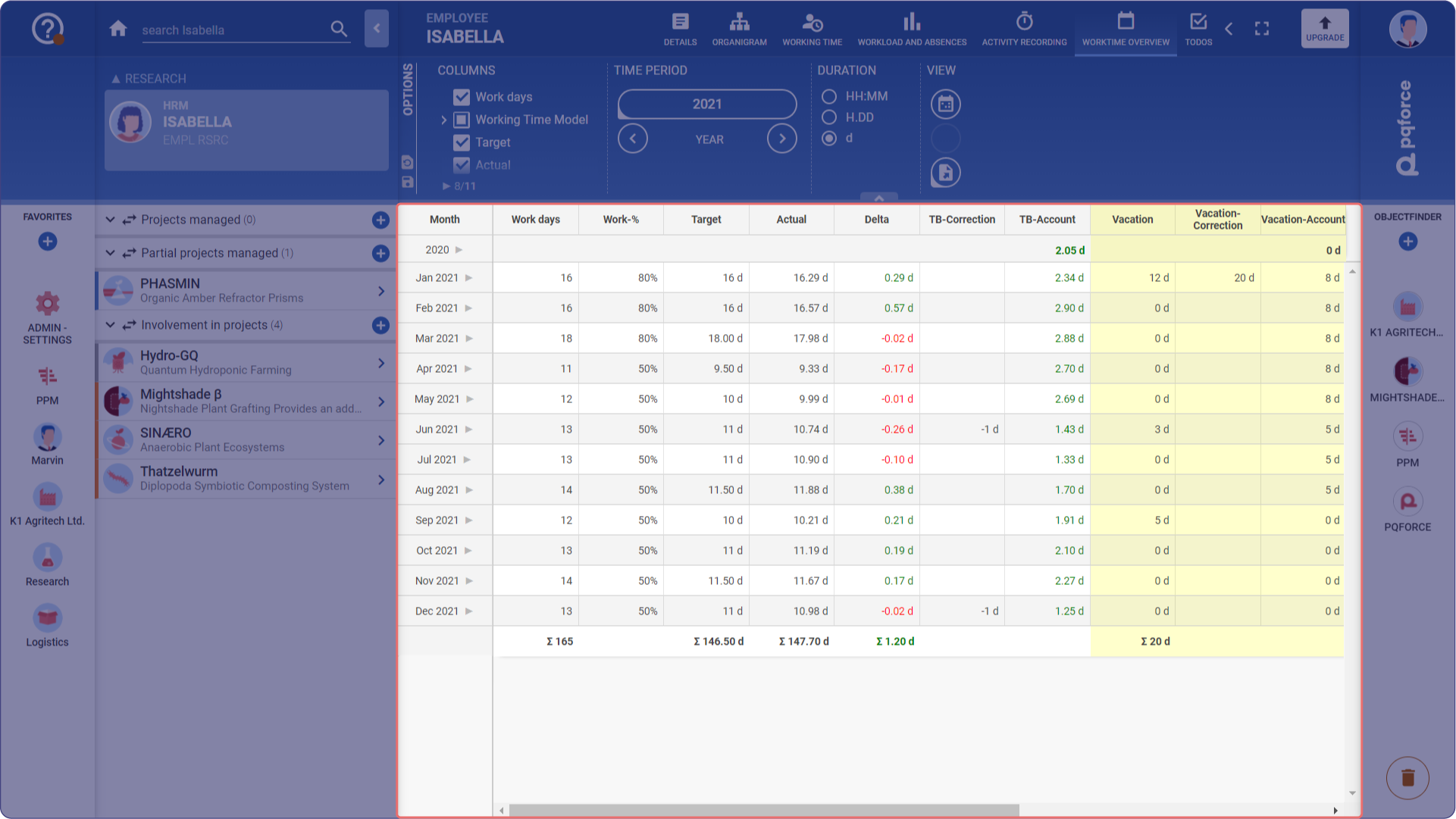
The workspace contains a table whose rows divide the year selected in the Options Area into its months.
Depending on the selection in the Options Area, the table contains information on the number of working days in the corresponding month, the working time model and the target and actual presence times. The difference between them under Delta is added to the flexitime balance for the corresponding month in the TB-Account column. Positive or negative corrections can be entered in the TB-Correction column, which have an effect on the TB-Account column.
In the highlighted columns, one column each is displayed per absence type for the absences recorded in the respective month, for any corrections and for the absence account. Under TB-Correction, positive or negative values can be entered that affect the TB-Account column of the same absence type.
This correction can be used, for example, to define at the beginning of the year how many vacation days the employee has available.
Options Area
The following section describes in detail which settings can be made in the Options Area.

COLUMNS
These check boxes can be used to expand or restrict the columns in the workspace with the number of working days per month, working time model data, target and actual times and their difference.
In addition, flexitime and also absence data can be displayed for the set time period.
TIME PERIOD
Determines which time period is relevant for the workspace. On this view, only years can be determined as the time period. Clicking on one of the arrows switches to the next or previous month.
DURATION
Here you can select in which time unit and in which format the durations are displayed in the workspace.
VIEW
Settings can be made here that expand or change the active view.
-
Calendar: Opens a calendar of the current year in the secondary workspace, in which all absences as well as holidays of the active resource are entered.
To the right of the calendar, the absences and holidays are listed with more detailed descriptions.
-
Export: Here the table, as it is currently displayed in the workspace, can be exported as a .pdf file.