Organigram
Workspace
The organisation chart is a representation of all employees and departments in the system, organised in a hierarchical tree structure.
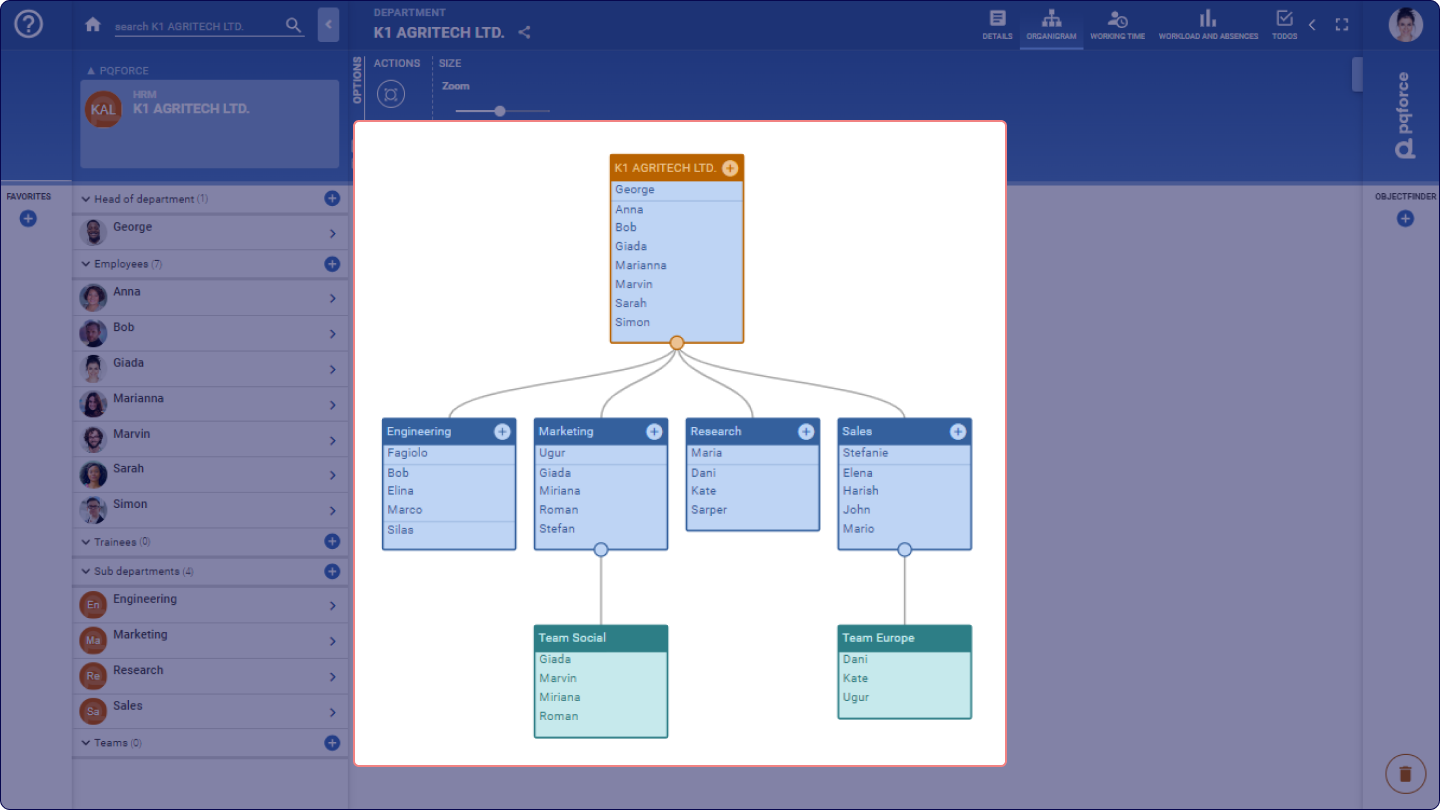
The nodes of this tree represent departments and teams, each containing employees. The root of the tree is a department that represents the company. Departments can have subdepartments, and these subdepartments can, in turn, have their own subdepartments. Notably, teams cannot have sub-teams. This hierarchical structure allows for a detailed representation of the organisation.
Active Department / Active employee
The active object is highlighted in the organisation chart.
If the active object is a team or department, it will be highlighted in the organisation chart.
If the active object is an employee, its name will be highlighted in bold font.
In both cases, the path from the root of the tree through the departments and their subdepartments to the active object is also highlighted in colour.
Adding new subdepartments, teams and employees
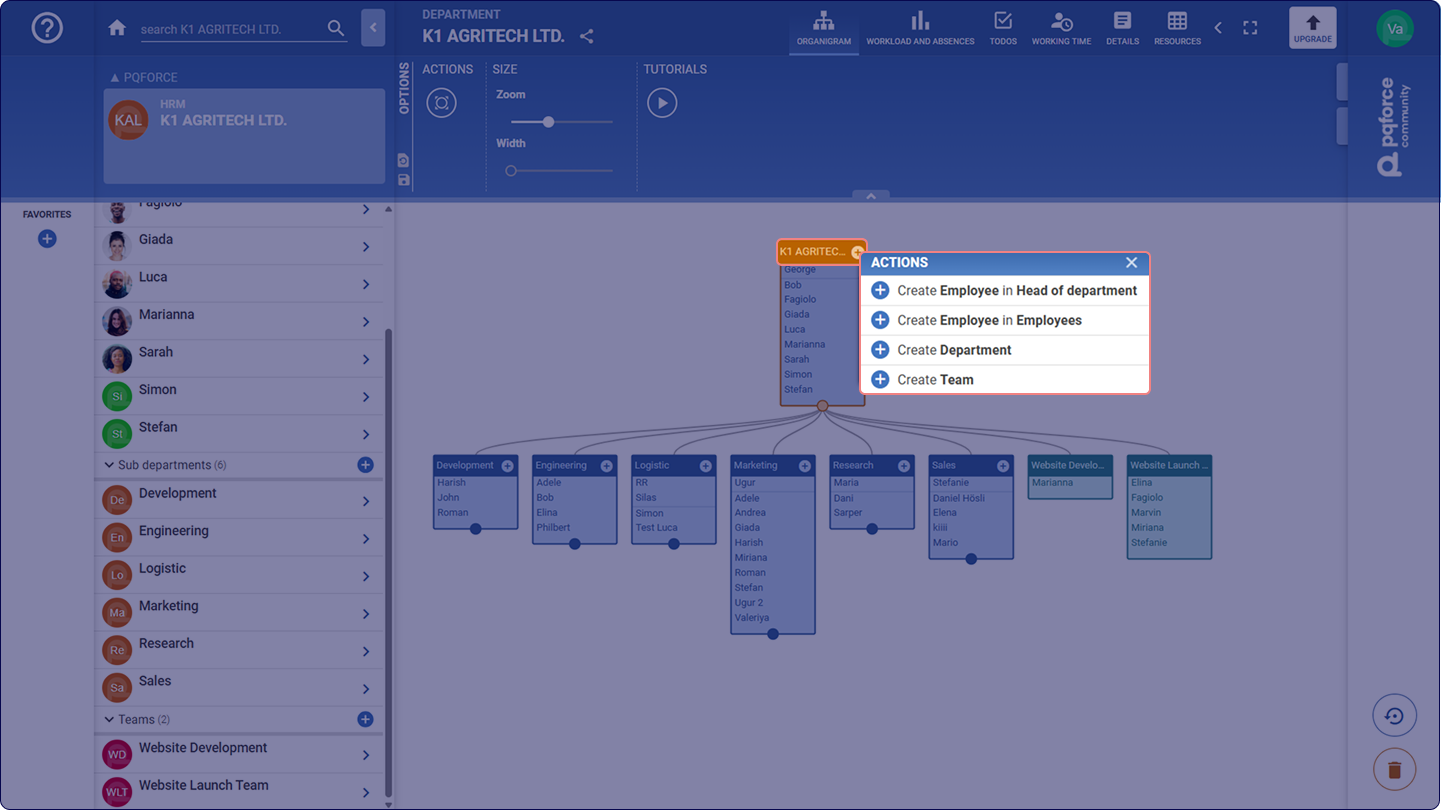
As in the navigator, new subdepartments, teams or employees can be added in a department by moving the mouse pointer over the name bar of the corresponding department and then clicking on the plus symbol that appears on the right. Afterwards in the appearing context menu it can be selected whether a new subdepartment, team or an employee should be created.
Moving departments and employees
Departments and employees can be moved in the organisation chart using drag & drop. To do this, the name of a department or an employee must be dragged to the target department with the mouse button held down.
If a department is moved in this way, it will be attached to the target department as a subdepartment.
If an employee is moved in this way, he will be moved to the target department.
Deleting departments and employees
Departments and employees can be deleted from the organisation chart by dragging and dropping the corresponding object to the trash can at the bottom right. It should be noted that departments can only be deleted if they do not have any subdepartments and do not contain any employees.
Options Area
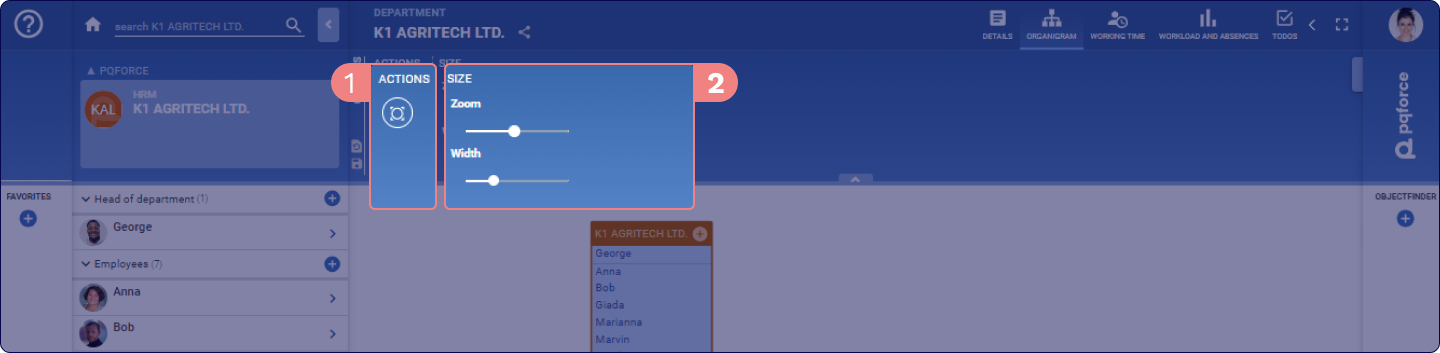
The following section describes in detail which settings can be made in the Options Area. Some options may vary, depending on PQFORCE edition.
ACTIONS
Actions can be performed here for the active view.
The functionalities and availability of this section may vary depending on your PQFORCE edition.
SIZE
These sliders scale the information displayed in the workspace.
-
Zoom: This slider adjusts the magnification factor in the workspace. The same effect can be created by pressing the mouse wheel with the CTRL key pressed while the mouse pointer is in the workspace.
-
Width: This slider changes the width of the divisions in the workspace. The same effect can be created by pressing the mouse wheel with the CTRL+SHIFT keys pressed while the mouse pointer is in the workspace.